Showing posts with label TIPS AND HOW-TO. Show all posts
Showing posts with label TIPS AND HOW-TO. Show all posts
Wednesday, November 2, 2016
How To Hard Reset Prestigio PMP5580C
How To Hard Reset Prestigio PMP5580C
Please notice that this action will delete all user data from the device.
1. Power OFF the device.
2. Press and hold "VOLUME+" & POWER buttons until the device turns ON.
3. Release buttons and wait till the Recovery menu appears.
4. Use "VOLUME+/-" buttons to navigate through the menu and POWER button to confirm your choice.
5. Select “wipe data/factory reset“ > “delete all user data“.
1. Power OFF the device.
2. Press and hold "VOLUME+" & POWER buttons until the device turns ON.
3. Release buttons and wait till the Recovery menu appears.
4. Use "VOLUME+/-" buttons to navigate through the menu and POWER button to confirm your choice.
5. Select “wipe data/factory reset“ > “delete all user data“.

6. Once the process is complete select “reboot system now“.

7.Follow on screen to continue using tablet


That's It Very Easy!
Something Wrong in my Post?Feel Free to comment Below!
Don't Forget to Like us on Facebook or Subscribe to us via E-mail
Posted by
komon

Friday, October 28, 2016
How To Hard Reset Starmobile Sky
Hello Guys!I want to share today How To Hard Reset Starmobile Sky.Perform a hard reset using hardware keys if you put any phone password and you forgot it and you can't access settings to manually reset it.Use hardware keys to reset it to factory default settings.First thing first,Let's take a look the specifications and price of this phone......

1.3GHz Quad Core ARM Cortex-A7
Mali 400-MP2 @ 500MHz
4-inch Capacitive Touchscreen
HSPA+ Download up to 21.1Mbps
4GB ROM + 512 MB RAM
125.7 x 64.6 x 10.99mm
8MP BSI + VGA Cameras
Up to 200 hours Standby Time
Up to 5.5 hours Talk Time
Regular + Regular SIM, Dual 3G Standby
1600mAh Li-Ion
MediaTek MT6582
Double Tap to Wake and Sleep
Multipoint Gestures
Call and Text Filtering
Smart Camera Controls
Warning! After this reset, all personal data from phone will be lost, so make a backup before.
1.Power off your phone (Recommended Directly Remove battery and Put it Back)
2.Hold and Press together volume up and power button
3.When you see Android lying with Exclamation Point,Click Power button to go to Android System Recovery
4.Use Volume Down to select wipe data/factory reset
5.Volume to Confirm and select yes-delete all user data
6.Wait Until Complete Wiped,then Reboot System
7.Follow on screen to continue using phone
That's It Very Easy!
Something Wrong in my Post?Feel Free to comment Below!
Don't Forget to Like us on Facebook or Subscribe to us via E-mail
Read more »
Starmobile Sky Specs and Price:
Android 4.4 KitKat1.3GHz Quad Core ARM Cortex-A7
Mali 400-MP2 @ 500MHz
4-inch Capacitive Touchscreen
HSPA+ Download up to 21.1Mbps
4GB ROM + 512 MB RAM
125.7 x 64.6 x 10.99mm
8MP BSI + VGA Cameras
Up to 200 hours Standby Time
Up to 5.5 hours Talk Time
Regular + Regular SIM, Dual 3G Standby
1600mAh Li-Ion
MediaTek MT6582
Double Tap to Wake and Sleep
Multipoint Gestures
Call and Text Filtering
Smart Camera Controls
Price:
Now only: Php 3,890.00How To Hard Reset Starmobile Sky
Warning! After this reset, all personal data from phone will be lost, so make a backup before.
1.Power off your phone (Recommended Directly Remove battery and Put it Back)
2.Hold and Press together volume up and power button
3.When you see Android lying with Exclamation Point,Click Power button to go to Android System Recovery
4.Use Volume Down to select wipe data/factory reset
5.Volume to Confirm and select yes-delete all user data
6.Wait Until Complete Wiped,then Reboot System
7.Follow on screen to continue using phone
That's It Very Easy!
Something Wrong in my Post?Feel Free to comment Below!
Don't Forget to Like us on Facebook or Subscribe to us via E-mail
Posted by
komon
Thursday, October 27, 2016
How To Fix Force Close on Samsung GT-I9082 (MTK Chip)
If your Samsung GT-I9082 (MTK Chip) is always force close,Do the hard reset using hardware keys will fix your problem.This Method also fix the Following problem.
*Force Close
*Any Forgotten Phone Password
*Sometimes Hang on logo
Warning: Performing this hard reset will reset to factory defaults it means all important data save in phone will completely deleted,so be sure you have already backup your important data.
Here's What To Do:
1.Turn-Off Phone2.Hold and Press Volume up and Power Button
3.When You see Android Lying with Exclamation Point Click Power Button


5.Select Yes-delete all user data,Volume up to confirm
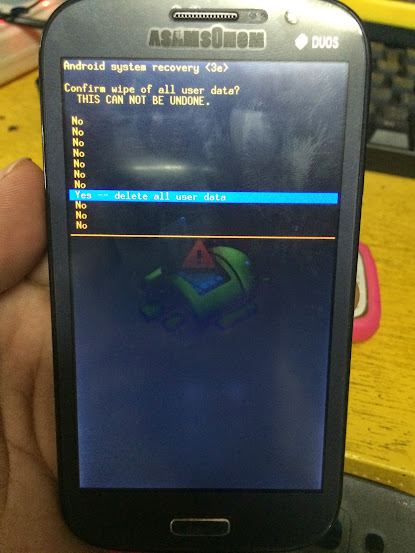
6.After Finish wipe,Reboot System
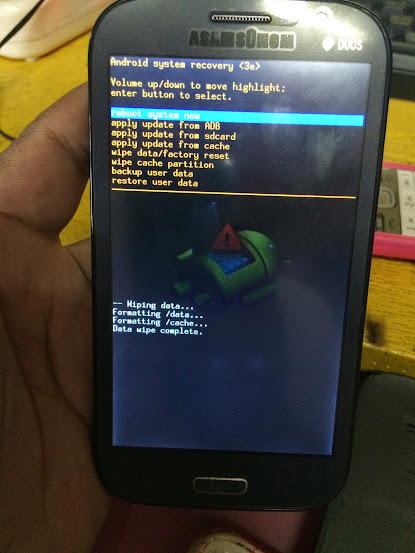
7.Wait until completely Power on

Posted by
komon
Tuesday, October 25, 2016
How To Remove Forgotten Pattern Password on Cherry Mobile Garnet [TUTORIAL]
Hello Guys!I want to share How To Remove Forgotten Pattern Password on Cherry Mobile Garnet using hardware keys in very simple step.Just Follow instructions below.
Other Tutorial:
Cherry Mobile Garnet Reset To Factory Settings Using Volcano Box
How To Root Cherry Mobile Garnet
Hard resetting / factory resetting your phone will solve the following issues:
1. If you forgot your pattern lock
2. If you forgot your gmail account
3. If you forgot your password
4. Apps that automatically force closing
5. Stuck in Cherry Mobile / Garnet Logo (sometimes does not work if the firmware is totally damage)
Warning: Performing hard reset will erase your data.
To hard reset:
1. Turn off your phone
2. Press and Hold VOLUME UP + Power button then quickly insert USB cable ( you must plugged it in the PC). If you did not insert the USB cable Android system recovery will not appear
3.If you do it correctly,Android lying with Exclamation Points will appear (Like this image below)

4.Use Volume Down to Select wipe / factory reset,press the Power Button to confirm your selection.
5. Reboot your phone.

Finish Product

Hard resetting / factory resetting your phone will solve the following issues:
1. If you forgot your pattern lock
2. If you forgot your gmail account
3. If you forgot your password
4. Apps that automatically force closing
5. Stuck in Cherry Mobile / Garnet Logo (sometimes does not work if the firmware is totally damage)
Warning: Performing hard reset will erase your data.
To hard reset:
1. Turn off your phone
2. Press and Hold VOLUME UP + Power button then quickly insert USB cable ( you must plugged it in the PC). If you did not insert the USB cable Android system recovery will not appear
3.If you do it correctly,Android lying with Exclamation Points will appear (Like this image below)
4.Use Volume Down to Select wipe / factory reset,press the Power Button to confirm your selection.
5. Reboot your phone.
Finish Product
Posted by
komon
Monday, August 1, 2016
MyPhone Agua Rio v2 Firmware Download Link
You need this firmware/stock rom if you have encountered this kind of problem in your phone.Listed Below
1.Hang in logo
2.Rebooting
3.Bootloop
4.Dead Phone But detected in PC
Some firmware files may be zipped. Please use either WinRAR or 7-Zip to extract. If a firmware file has been divided into multiple parts, use either program to combine into a single file.


1.Hang in logo
2.Rebooting
3.Bootloop
4.Dead Phone But detected in PC
Some firmware files may be zipped. Please use either WinRAR or 7-Zip to extract. If a firmware file has been divided into multiple parts, use either program to combine into a single file.
Downloads:
updated no password
VCom Drivers
Drivers Auto Installer
Sp Flash Tools
Sp Flash Tools
After finish downloading all files put in one folder in desktop to easily navigate the files.
If you using Window 7 OS
Connect your phone in PC using Micro USB Cable in turn-off mode and open Drivers Auto Installer and run the install-window batch file.Like shown in the image.


3. If the driver is successfully installed MediaTek DA USB VCOM will appear in the New Hardware Wizard...
VCom Drivers
Drivers Auto Installer
Sp Flash Tools
Sp Flash Tools
After finish downloading all files put in one folder in desktop to easily navigate the files.
Installing Drivers
First thing first,Before you can flash/install rom in your phone you must secure first that your phone is detected in your PC.If you using Window 7 OS
Connect your phone in PC using Micro USB Cable in turn-off mode and open Drivers Auto Installer and run the install-window batch file.Like shown in the image.
The drivers will automatically installed in your PC.
If You using Window XP
Connect your phone in PC using Micro USB Cable in turn-off mode while pressing Volume Up or Volume Down.This will detect and look for the driver.
1. This is the first time that you will connect your phone and it will search for the correct driver.
2. Check include this location ... ... and click on browse. Look for USB VCOM Driver and Click on 2K_XP_COM folder if you are using Windows XP or Win7 for Windows 7 and then press OK when you are done picking the right folder for the driver.
Flashing/Install new Firmware/Stock ROM
1.Open Sp Flash tool
2.Click Scatter-loading and browse for MT6572_Android_scatter
3.Now,Click Download and connect your phone while power off.
4.When successfully connected the progress bar will run and change it colors and wait until you dialog window saying Download Ok.
Some workarounds:
If you encounter PMT_Changed error here is what you do:
In Older Version of FlashTool
Load the scatter file
Click in Format (a new menu will popup)
Make sure that you select Format whole flash except bootloader then press OK
Connect your phone in bootmode (Turn off your device then hold Volume UP or VOLUME DOWN then insert USB)
It should detect your phone and continue to flash.
Then Click Download to fully flash your phone.
Hard Reset your phone after flashing.
In Latest version of Flashtool
Load the scatter file
Choose Format + Download (Underneath Scatter-loading file)
Then Click Download and wait until it is done flashing
For Invalid IMEI:
Your Phone/Tablet must be rooted first
Restore yong IMEI in MTKDroidTools version 2.5.3. You will have this error when you format your phone in Flashtool as I had experienced. To restore download MTKDroidTools version 2.5.3 After you extract the file. Open the green robot, you must enable the usb debugging in your phone. It is usually located in Settings>Devoloper Mode then look for usb debugging. After enabling it. Connect your phone in your computer then in MTKDroidTool click on ROOT. Wait for it to finish, then Click in IMEI/NVRAM, input 15 number in each box. Then click REPLACE. Then click Reboot or you can manually turn off your phone. Then turn your phone on again. You can see that you have fully restored your IMEI.
Don't Forget to like us on Facebook and Follow us on Google+
Posted by
komon
Wednesday, June 29, 2016
SKK Glimpse 2+ Firmware Download Links
Below is the Download link of this phone called SKK Glimpse 2+ which you can use to flash your phone using SP Flash Tool.
Flash the Firmware using SP Flash Tool if your phone stuck on logo and even boot loop situation can fix by using this firmware.
1.Download all necessary files below.(Extract in desktop using Extractor Software)
2.Make sure Drivers of your phone properly installed in your PC
3.Now,Open SP Flash Tool.(see the image)

4.Load Scatter Files by clicking scatter-loading and browse the scatter files where did you put in step 1.

5.Now,Switch to Advance Mode[press Ctrl+Alt+V] and follow what shown in the images.

6.After finish format,Click Download.(as shown in the image)

7.This time,Connect your phone while it is turn-off
8.Wait until flashing Complete
9.There should be a check will come-out after finis flashing and finally check your phone if back to normal now.
Download:
SKK Glimpse 2+ Firmware
Drivers Auto Installer
SP Flash Tool
PASSWORD: mobstar28
Thanks to the original uploader mobstar28 of gsmsandwich.com
[Source]
Flash the Firmware using SP Flash Tool if your phone stuck on logo and even boot loop situation can fix by using this firmware.
Instructions:
1.Download all necessary files below.(Extract in desktop using Extractor Software)
2.Make sure Drivers of your phone properly installed in your PC
3.Now,Open SP Flash Tool.(see the image)

4.Load Scatter Files by clicking scatter-loading and browse the scatter files where did you put in step 1.

5.Now,Switch to Advance Mode[press Ctrl+Alt+V] and follow what shown in the images.

6.After finish format,Click Download.(as shown in the image)

7.This time,Connect your phone while it is turn-off
8.Wait until flashing Complete
9.There should be a check will come-out after finis flashing and finally check your phone if back to normal now.
Download:
SKK Glimpse 2+ Firmware
Drivers Auto Installer
SP Flash Tool
PASSWORD: mobstar28
Thanks to the original uploader mobstar28 of gsmsandwich.com
[Source]
Posted by
komon
Cherry Mobile Amethyst Firmware Download Link
You need this firmware/stock rom if you have encountered this kind of problem in your phone.Listed Below
1.Hang in logo
2.Rebooting
3.Bootloop
4.Dead Phone But detected in PC
Some firmware files may be zipped. Please use either WinRAR or 7-Zip to extract. If a firmware file has been divided into multiple parts, use either program to combine into a single file.
1.Hang in logo
2.Rebooting
3.Bootloop
4.Dead Phone But detected in PC
Some firmware files may be zipped. Please use either WinRAR or 7-Zip to extract. If a firmware file has been divided into multiple parts, use either program to combine into a single file.
Downloads:
VCom Drivers
Drivers Auto Installer
Sp Flash Tools
Sp Flash Tools
After finish downloading all files put in one folder in desktop to easily navigate the files.
If you using Window 7 OS
Connect your phone in PC using Micro USB Cable in turn-off mode and open Drivers Auto Installer and run the install-window batch file.Like shown in the image.
3. If the driver is successfully installed MediaTek DA USB VCOM will appear in the New Hardware Wizard...
Drivers Auto Installer
Sp Flash Tools
Sp Flash Tools
After finish downloading all files put in one folder in desktop to easily navigate the files.
Installing Drivers
First thing first,Before you can flash/install rom in your phone you must secure first that your phone is detected in your PC.If you using Window 7 OS
Connect your phone in PC using Micro USB Cable in turn-off mode and open Drivers Auto Installer and run the install-window batch file.Like shown in the image.
The drivers will automatically installed in your PC.
If You using Window XP
Connect your phone in PC using Micro USB Cable in turn-off mode while pressing Volume Up or Volume Down.This will detect and look for the driver.
1. This is the first time that you will connect your phone and it will search for the correct driver.
2. Check include this location ... ... and click on browse. Look for USB VCOM Driver and Click on 2K_XP_COM folder if you are using Windows XP or Win7 for Windows 7 and then press OK when you are done picking the right folder for the driver.
Flashing/Install new Firmware/Stock ROM
1.Open Sp Flash tool
2.Click Scatter-loading and browse for MT6572_Android_scatter
3.Now,Click Download and connect your phone while power off.
4.When successfully connected the progress bar will run and change it colors and wait until you dialog window saying Download Ok.
Some workarounds:
If you encounter PMT_Changed error here is what you do:
In Older Version of FlashTool
Load the scatter file
Click in Format (a new menu will popup)
Make sure that you select Format whole flash except bootloader then press OK
Connect your phone in bootmode (Turn off your device then hold Volume UP or VOLUME DOWN then insert USB)
It should detect your phone and continue to flash.
Then Click Download to fully flash your phone.
Hard Reset your phone after flashing.
In Latest version of Flashtool
Load the scatter file
Choose Format + Download (Underneath Scatter-loading file)
Then Click Download and wait until it is done flashing
For Invalid IMEI:
Your Phone/Tablet must be rooted first
Restore yong IMEI in MTKDroidTools version 2.5.3. You will have this error when you format your phone in Flashtool as I had experienced. To restore download MTKDroidTools version 2.5.3 After you extract the file. Open the green robot, you must enable the usb debugging in your phone. It is usually located in Settings>Devoloper Mode then look for usb debugging. After enabling it. Connect your phone in your computer then in MTKDroidTool click on ROOT. Wait for it to finish, then Click in IMEI/NVRAM, input 15 number in each box. Then click REPLACE. Then click Reboot or you can manually turn off your phone. Then turn your phone on again. You can see that you have fully restored your IMEI.
Don't Forget to like us on Facebook and Follow us on Google+
Posted by
komon
Wednesday, June 22, 2016
How To Revive Deadset MyPhone Rio Junior with Tested Firmware
A lot of asking me via e-mail and pm in facebook How To Revive Deadset MyPhone Rio Junior?For those who keep on asking me,here's the tutorial that you waiting for!!!
This is How will you Revive Deadset MyPhone Rio Junior.
Things that you needed to Revive Deadset MyPhone Rio Junior.Download the Followings
MyPhone Rio Junior V1 Firmware
Sp Flash Tools
1. Enter folder “SP_Flash_Tool_exe_windows_v5.1424.00”, run flashtool.exe
As the picture shows , select file MTK_AllInOne_DA.bin under folder SP_Flash_Tool_exe_windows_v5.1424.00 for Download Agent,and scatter file in the software package for Scatter-loading.

2. Select Format option,press CTRL+ALT+V to enter advanced mode,select format whole flash and Forcedly Erase.

3. Enter Options,select download menu,select Physical Format/ Readback,then close this window,press Start button,connect USB cable to your phone(power off or take out battery),it’ll format your phone automatically.

4. After format your phone, you can go to download screen and download software to your phone.
5. Load firmware file,and click Download..disconnect the cable from phone,remove battery,then insert again,insert cable....wait till finished!!

Comments are very appreciated!!!
This is How will you Revive Deadset MyPhone Rio Junior.
Things that you needed to Revive Deadset MyPhone Rio Junior.Download the Followings
MyPhone Rio Junior V1 Firmware
Sp Flash Tools
1. Enter folder “SP_Flash_Tool_exe_windows_v5.1424.00”, run flashtool.exe
As the picture shows , select file MTK_AllInOne_DA.bin under folder SP_Flash_Tool_exe_windows_v5.1424.00 for Download Agent,and scatter file in the software package for Scatter-loading.

2. Select Format option,press CTRL+ALT+V to enter advanced mode,select format whole flash and Forcedly Erase.

3. Enter Options,select download menu,select Physical Format/ Readback,then close this window,press Start button,connect USB cable to your phone(power off or take out battery),it’ll format your phone automatically.

4. After format your phone, you can go to download screen and download software to your phone.
5. Load firmware file,and click Download..disconnect the cable from phone,remove battery,then insert again,insert cable....wait till finished!!

Comments are very appreciated!!!
Posted by
komon
Monday, June 20, 2016
Torque Slate HD Firmware Download Link
You need this firmware/stock rom if you have encountered this kind of problem in your phone.Listed Below
1.Hang in logo
2.Rebooting
3.Bootloop
4.Dead Phone But detected in PC
Some firmware files may be zipped. Please use either WinRAR or 7-Zip to extract. If a firmware file has been divided into multiple parts, use either program to combine into a single file.
1.Hang in logo
2.Rebooting
3.Bootloop
4.Dead Phone But detected in PC
Some firmware files may be zipped. Please use either WinRAR or 7-Zip to extract. If a firmware file has been divided into multiple parts, use either program to combine into a single file.
Downloads:
VCom Drivers
Drivers Auto Installer
Sp Flash Tools
Sp Flash Tools
After finish downloading all files put in one folder in desktop to easily navigate the files.
If you using Window 7 OS
Connect your phone in PC using Micro USB Cable in turn-off mode and open Drivers Auto Installer and run the install-window batch file.Like shown in the image.
3. If the driver is successfully installed MediaTek DA USB VCOM will appear in the New Hardware Wizard...
Drivers Auto Installer
Sp Flash Tools
Sp Flash Tools
After finish downloading all files put in one folder in desktop to easily navigate the files.
Installing Drivers
First thing first,Before you can flash/install rom in your phone you must secure first that your phone is detected in your PC.If you using Window 7 OS
Connect your phone in PC using Micro USB Cable in turn-off mode and open Drivers Auto Installer and run the install-window batch file.Like shown in the image.
The drivers will automatically installed in your PC.
If You using Window XP
Connect your phone in PC using Micro USB Cable in turn-off mode while pressing Volume Up or Volume Down.This will detect and look for the driver.
1. This is the first time that you will connect your phone and it will search for the correct driver.
2. Check include this location ... ... and click on browse. Look for USB VCOM Driver and Click on 2K_XP_COM folder if you are using Windows XP or Win7 for Windows 7 and then press OK when you are done picking the right folder for the driver.
Flashing/Install new Firmware/Stock ROM
1.Open Sp Flash tool
2.Click Scatter-loading and browse for MT6572_Android_scatter
3.Now,Click Download and connect your phone while power off.
4.When successfully connected the progress bar will run and change it colors and wait until you dialog window saying Download Ok.
Some workarounds:
If you encounter PMT_Changed error here is what you do:
In Older Version of FlashTool
Load the scatter file
Click in Format (a new menu will popup)
Make sure that you select Format whole flash except bootloader then press OK
Connect your phone in bootmode (Turn off your device then hold Volume UP or VOLUME DOWN then insert USB)
It should detect your phone and continue to flash.
Then Click Download to fully flash your phone.
Hard Reset your phone after flashing.
In Latest version of Flashtool
Load the scatter file
Choose Format + Download (Underneath Scatter-loading file)
Then Click Download and wait until it is done flashing
For Invalid IMEI:
Your Phone/Tablet must be rooted first
Restore yong IMEI in MTKDroidTools version 2.5.3. You will have this error when you format your phone in Flashtool as I had experienced. To restore download MTKDroidTools version 2.5.3 After you extract the file. Open the green robot, you must enable the usb debugging in your phone. It is usually located in Settings>Devoloper Mode then look for usb debugging. After enabling it. Connect your phone in your computer then in MTKDroidTool click on ROOT. Wait for it to finish, then Click in IMEI/NVRAM, input 15 number in each box. Then click REPLACE. Then click Reboot or you can manually turn off your phone. Then turn your phone on again. You can see that you have fully restored your IMEI.
Don't Forget to like us on Facebook and Follow us on Google+
Posted by
komon
Tuesday, June 14, 2016
How to Hard Reset Samsung Galaxy J1
This tutorial will guide you the steps that you should follow to perform a master reset in your Samsung Galaxy J1.A master reset restores the original factory settings and may delete your personal data on the internal storage, such as downloaded content, ringtones, images, apps, and contacts. It does not delete data stored on the SIM card or SD card.
There are two ways to master reset your Samsung Galaxy J1,First is,Reset from settings menu and the second one is using hardware keys (If the device menus are frozen or unresponsive, you can master reset using hardware keys). That's are we want to show here How to do this.are you ready guys?Now,Let's do this....
How To Soft Reset Samsung Galaxy J1:
*Back up all data on the internal memory.
*From any Home screen, tap Apps.
*Tap Settings.
*Scroll to 'USER AND BACKUP,' then tap Backup and reset.
*If desired, tap Automatic restore to clear the check box.
*If desired, tap Back up my data to clear the check box.
*Tap Factory data reset.
*Tap Reset device.
*If you have screen lock turned on, enter your PIN or password.
*Tap Continue.
*Tap Delete all.
Samsung Galaxy J1 Hard Reset
*Turn off the phone. If the phone will not turn off, remove and re-insert the battery.
*Press and hold the following three buttons at the same time:
*When the phone vibrates, release the Power and Home key but continue to press and hold the Volume Up key.
*When the Android System Recovery screen appears, release the Volume Up keys.
*Press the Volume down key several times key to highlight 'wipe data / factory reset.'
*Press Power button to select.
*Press the Volume down key until 'Yes -- delete all user data' is highlighted.
*Press Power button to select and start the master reset.
*When the master reset is complete, 'Reboot system now' is highlighted.
*Press the Power key to restart the device
That's It Very Easy!
There are two ways to master reset your Samsung Galaxy J1,First is,Reset from settings menu and the second one is using hardware keys (If the device menus are frozen or unresponsive, you can master reset using hardware keys). That's are we want to show here How to do this.are you ready guys?Now,Let's do this....
How To Soft Reset Samsung Galaxy J1:
*Back up all data on the internal memory.
*From any Home screen, tap Apps.
*Tap Settings.
*Scroll to 'USER AND BACKUP,' then tap Backup and reset.
*If desired, tap Automatic restore to clear the check box.
*If desired, tap Back up my data to clear the check box.
*Tap Factory data reset.
*Tap Reset device.
*If you have screen lock turned on, enter your PIN or password.
*Tap Continue.
*Tap Delete all.
Samsung Galaxy J1 Hard Reset
 |
| Samsung Galaxy J1 |
*Turn off the phone. If the phone will not turn off, remove and re-insert the battery.
*Press and hold the following three buttons at the same time:
- Volume Up key
- Home key
- Power key.
*When the phone vibrates, release the Power and Home key but continue to press and hold the Volume Up key.
*When the Android System Recovery screen appears, release the Volume Up keys.
*Press the Volume down key several times key to highlight 'wipe data / factory reset.'
*Press Power button to select.
*Press the Volume down key until 'Yes -- delete all user data' is highlighted.
*Press Power button to select and start the master reset.
*When the master reset is complete, 'Reboot system now' is highlighted.
*Press the Power key to restart the device
That's It Very Easy!
Posted by
komon
How To Hard Reset Microsoft Lumia 532
Here's the steps that you should follow to perform a hard reset in your Microsoft Lumia 532.Perform a hard reset if you have experience software problem like hangs,freezes,and even forgotten password.First thing first,let's take a look the specs of this phone.

Warning:Make sure the battery is fully charged and Make sure you have already back-up your important data because by doing this method all data save in phone will completely deleted.
Microsoft Lumia 532 Specifications
- Windows Phone 8.1 with Lumia Denim update
- 4-inch LCD (480×800 WVGA), ~233ppi
- 1.2GHz quad-core Qualcomm Snapdragon 200 processor
- 1GB RAM
- 8GB internal storage
- microSD support up to 128GB
- 5-megapixel main camera, with fixed focus and no LED flash
- 0.3-megapixel (VGA) front camera
- Wi-Fi 802.11 b/g/n
- Dual SIM with dual standby
- 3.5G HSPA
- Dimensions: 118.9 x 65.5 x 11.6mm
- Weight: 131.8g
- 1560mAh battery
Microsoft Lumia 532 Hard Reset Steps:
Warning:Make sure the battery is fully charged and Make sure you have already back-up your important data because by doing this method all data save in phone will completely deleted.
1.Turn-Off Microsoft Lumia 532
2.Press Power button once.
3.Next you should to press and hold Volume Down until you see exclamation mark on the screen.
4.Then press this buttons in sequence:
2.Press Power button once.
3.Next you should to press and hold Volume Down until you see exclamation mark on the screen.
4.Then press this buttons in sequence:
- Volume Up
- Volume Down
- Power button
- Volume Down.
5.Wait for your phone to reset, during the reset you will see gears rotating on the screen for up to 5 minutes, after which the screen goes blank for ~30 seconds and then your phone will restart.
6.Follow on screen to continue using phone
That’s all. Now your Microsoft Lumia 532 back to factory default setting now.
6.Follow on screen to continue using phone
That’s all. Now your Microsoft Lumia 532 back to factory default setting now.
Posted by
komon
Cherry Mobile Marble Firmware Download Link
You need this firmware/stock rom if you have encountered this kind of problem in your phone.Listed Below
1.Hang in logo
2.Rebooting
3.Bootloop
4.Dead Phone But detected in PC
Some firmware files may be zipped. Please use either WinRAR or 7-Zip to extract. If a firmware file has been divided into multiple parts, use either program to combine into a single file.
1.Hang in logo
2.Rebooting
3.Bootloop
4.Dead Phone But detected in PC
Some firmware files may be zipped. Please use either WinRAR or 7-Zip to extract. If a firmware file has been divided into multiple parts, use either program to combine into a single file.
Downloads:
VCom Drivers
Drivers Auto Installer
Sp Flash Tools
Sp Flash Tools
After finish downloading all files put in one folder in desktop to easily navigate the files.
If you using Window 7 OS
Connect your phone in PC using Micro USB Cable in turn-off mode and open Drivers Auto Installer and run the install-window batch file.Like shown in the image.
3. If the driver is successfully installed MediaTek DA USB VCOM will appear in the New Hardware Wizard...
Drivers Auto Installer
Sp Flash Tools
Sp Flash Tools
After finish downloading all files put in one folder in desktop to easily navigate the files.
Installing Drivers
First thing first,Before you can flash/install rom in your phone you must secure first that your phone is detected in your PC.If you using Window 7 OS
Connect your phone in PC using Micro USB Cable in turn-off mode and open Drivers Auto Installer and run the install-window batch file.Like shown in the image.
The drivers will automatically installed in your PC.
If You using Window XP
Connect your phone in PC using Micro USB Cable in turn-off mode while pressing Volume Up or Volume Down.This will detect and look for the driver.
1. This is the first time that you will connect your phone and it will search for the correct driver.
2. Check include this location ... ... and click on browse. Look for USB VCOM Driver and Click on 2K_XP_COM folder if you are using Windows XP or Win7 for Windows 7 and then press OK when you are done picking the right folder for the driver.
Flashing/Install new Firmware/Stock ROM
1.Open Sp Flash tool
2.Click Scatter-loading and browse for MT6572_Android_scatter
3.Now,Click Download and connect your phone while power off.
4.When successfully connected the progress bar will run and change it colors and wait until you dialog window saying Download Ok.
Some workarounds:
If you encounter PMT_Changed error here is what you do:
In Older Version of FlashTool
Load the scatter file
Click in Format (a new menu will popup)
Make sure that you select Format whole flash except bootloader then press OK
Connect your phone in bootmode (Turn off your device then hold Volume UP or VOLUME DOWN then insert USB)
It should detect your phone and continue to flash.
Then Click Download to fully flash your phone.
Hard Reset your phone after flashing.
In Latest version of Flashtool
Load the scatter file
Choose Format + Download (Underneath Scatter-loading file)
Then Click Download and wait until it is done flashing
For Invalid IMEI:
Your Phone/Tablet must be rooted first
Restore yong IMEI in MTKDroidTools version 2.5.3. You will have this error when you format your phone in Flashtool as I had experienced. To restore download MTKDroidTools version 2.5.3 After you extract the file. Open the green robot, you must enable the usb debugging in your phone. It is usually located in Settings>Devoloper Mode then look for usb debugging. After enabling it. Connect your phone in your computer then in MTKDroidTool click on ROOT. Wait for it to finish, then Click in IMEI/NVRAM, input 15 number in each box. Then click REPLACE. Then click Reboot or you can manually turn off your phone. Then turn your phone on again. You can see that you have fully restored your IMEI.
Don't Forget to like us on Facebook and Follow us on Google+
Posted by
komon
Subscribe to:
Posts (Atom)