Showing posts with label SAMSUNG. Show all posts
Showing posts with label SAMSUNG. Show all posts
Saturday, December 24, 2016
How To Hard Reset Samsung Galaxy Note 4
This tutorial will guide you the steps that you should follow to perform a master reset in your Samsung Galaxy Note 4.A master reset restores the original factory settings and may delete your personal data on the internal storage, such as downloaded content, ringtones, images, apps, and contacts. It does not delete data stored on the SIM card or SD card.
There are two ways to master reset your Samsung Galaxy Note 4,First is,Reset from settings menu and the second one is using hardware keys (If the device menus are frozen or unresponsive, you can master reset using hardware keys). That's are we want to show here How to do this.are you ready guys?Now,Let's do this...
How To Soft Reset Samsung Galaxy Note 4:
*Back up all data on the internal memory.*From any Home screen, tap Apps.
*Tap Settings.
*Scroll to 'USER AND BACKUP,' then tap Backup and reset.
*If desired, tap Automatic restore to clear the check box.
*If desired, tap Back up my data to clear the check box.
*Tap Factory data reset.
*Tap Reset device.
*If you have screen lock turned on, enter your PIN or password.
*Tap Continue.
*Tap Delete all.
How To Hard Reset Samsung Galaxy Note 4

*Back up all data on the internal memory.
*Turn off the phone. If the phone will not turn off, remove and re-insert the battery.
*Press and hold the following three buttons at the same time:
- Volume Up key
- Home key
- Power key.
*When the phone vibrates, release the Power and Home key but continue to press and hold the Volume Up key.
*When the Android System Recovery screen appears, release the Volume Up keys.
*Press the Volume down key several times key to highlight 'wipe data / factory reset.'
*Press Power button to select.
*Press the Volume down key until 'Yes -- delete all user data' is highlighted.
*Press Power button to select and start the master reset.
*When the master reset is complete, 'Reboot system now' is highlighted.
*Press the Power key to restart the device
That's It Very Easy!
Something Wrong in my Post?Feel Free to comment Below!
Don't Forget to Like us on Facebook or Subscribe to us via E-mail
Posted by
komon

Wednesday, December 21, 2016
Samsung Galaxy Core Prime (SM-G360F / SM-G360G) Hard Reset
This tutorial will guide you the steps that you should follow to perform a Hard Reset using hardware keys.Do this method if you can't access settings in your phone to manually reset your Samsung Galaxy Core Prime.By doing this,all newly installed apps,messages,contacts,photos and important data will completely wipe-out,so be sure you have already make a back-up before doing this.Also make sure your battery is fully charged.performing this will fix force close,hangs and any forgotten passwords you put in your Samsung Galaxy Core Prime.First thing first,Let's know what the specifications of this phone.
Samsung Galaxy Core Prime (SM-G360F / SM-G360G) is equipped with a 4.5-inch WVGA multi-touch display (207.3 ppi pixel density). It offers fast internet connection with 4G LTE support. The chip inside is Qualcomm MSM8916 Snapdragon 410, consisting of quad-core 1.2 GHz Cortex-A53 and Adreno 306 GPU. For system memory, Samsung equips it with 1 GB of RAM. This Android handset has 8 GB of built-in storage. A microSD slot inside the device can be occupied with a microSD card up to 64 GB.
A 5 megapixels camera is placed on the back with a LED flash beside it. Autofocus, geo-tagging, face detection, and touch focus are also supported. There’s another camera with 2 megapixels resolution on the back. For connectivity, it brings microUSB 2.0 port, Bluetooth 4.0 with A2DP, Wi-Fi 802.11b/g/n, wireless tethering, Wi-Fi Direct, and NFC. This phone is quite slim, only 8.8 mm. Weighing at 130 grams, it’s available in black and white. It also has a Lithium-Ion 2000 mAh battery, a 3.5mm audio jack, and GPS with A-GPS.
Samsung Galaxy Core Prime Key Specs:
Android OS, v4.4.2 (KitKat)4.5 inches, 480 x 800 pixels, 207 pixels per inch (PPI)
Chipset Qualcomm Snapdragon 400, Quad-core 1.3 GHz Cortex-A7
8GB Storage
1 GB RAM and expendable Memory via microSD card upto 64GB Supported
Li-ion 2000 mAh battery
5 MP, 2592 x 1944 pixels, autofocus, LED flash, Geo-tagging, face and smile detection, panorama, 720p@30fps
Front 2MP Camera
Bluetooth v4.0, A2DP, USB v2.0, Wi-Fi 802.11 a/b/g/n Wi-Fi hotspot
Samsung Galaxy Core Prime (SM-G360F / SM-G360G) Hard Reset:

2.Hold And Press Together Volume up and Home Button and Power Button
3.Use Volume Down to select wipe data/factory reset,confirm by clicking Power Button
4.Select Yes-delete all user data,Again Click Power Button to confirm
5.After finish wipe,Select Reboot System and wait until Power-On
6.Follow on screen to continue using Samsung Galaxy Core Prime
That's It Very Easy!
Something Wrong in my Post?Feel Free to comment Below!
Don't Forget to Like us on Facebook or Subscribe to us via E-mail
Posted by
komon
Sunday, December 18, 2016
How To Update Samsung Galaxy Note 3 (SM-N9005) To Android 4.4.2 KitKat
Yesterday,I share with you How to Root Samsung Galaxy Note 3 (SM-N9005) Running on Android 4.4.2 KitKat.This time I want to share with you How To Update Samsung Galaxy Note 3 (SM-N9005) To Android 4.4.2 KitKat.Do this method if you encountered in your note 3 like force close,freezes and hang in logo or just want to update to the latest Android Version on your phone.Before doing this make sure your battery is fully charge and keep in mind that by doing this all important data save in your phone will completely deleted.
– check the device’s model number by opening the ‘About Device’ section and checking the info listed there.
– don’t attempt to update any other smartphones nor tablets with the files that you will find in this article as you’re risking damaging your device.
1.Download the N9005ZHUENJ1_N9005ZZHENJ1_TGY zip firmware from here.
– you need to create an account at SamMobile before being able to download the firmware file from them.
– create the account and click the download link once again.
I hope that you did manage to update your smartphone with the instructions that I’ve listed above. If the installation failed, then you should read the notes below.
NOTE 1: If ODIN displays the ‘FAIL’ alert, the phone enters into a bootloop, it freezes or something blocks the installation, then you should try to repeat the entire tutorial once again. Make sure not to skip any steps and to ask for more help in comments.
NOTE 2: If ODIN says that the process was passed, but the phone is unable to go past the Samsung boot animation, it enters into a boot loop or it boots and it shows too many errors, then you will be forced to apply an Android Factory Reset. Below you can find all info but, factory reset process will wipe all data from the system partition:
That’s it, now you simply need to enter your Google / Samsung account info and then you can start testing the new Android 4.4.2 KitKat official firmware on your Galaxy Note 3 device.
Here’s what you need to know before getting to the tutorial:
*Use this tutorial only with the Samsung Galaxy Note 3 model number SM – N9005.– check the device’s model number by opening the ‘About Device’ section and checking the info listed there.
– don’t attempt to update any other smartphones nor tablets with the files that you will find in this article as you’re risking damaging your device.
*install the Samsung USB Drivers for your computer.
– without these drivers your PC won’t connect to your smartphone and ODIN, the app you will use to flash the update, will not detect the Note 3.
– without these drivers your PC won’t connect to your smartphone and ODIN, the app you will use to flash the update, will not detect the Note 3.
*Disable the Samsung KIES from running on your computer.
*Disable the antivirus apps that are opened on your PC.
*Enable USB Debugging for your phone from its Developer Options menu.
– in case Developer Options doesn’t show up in Settings, then you will need to enable them – learn here on how to enable USB Debugging for Samsung phone.
– in case Developer Options doesn’t show up in Settings, then you will need to enable them – learn here on how to enable USB Debugging for Samsung phone.
*If your Note 3 smartphone is running a stock ROM you can be sure that no files will be removed in the process.
*However, if your phone features a custom ROM then you should know that the flashing process of XXUDND1 KitKat update will remove all data from the system partition.
– use Helium for Android if you want to backup data from installed apps or SMS text messages.
– also, sync Contacts data with your Gmail account.
– use Helium for Android if you want to backup data from installed apps or SMS text messages.
– also, sync Contacts data with your Gmail account.
*If your device features any custom Recovery on it, then this will be removed in the process and a stock Recovery will be flashed instead.
*Rooted Note 3 phones will have their root access after flashing a stock Android 4.4.2 ROM.
*Check your phone’s battery charge level and make sure that it is over 50%, so that the phone won’t switch off in the middle of the updating process.
*Use this guide only if you’re an advanced user and you know what you’re doing.
*Note that we won’t be held responsible in case you brick your phone or lose any data in the process.
*Read the entire post first and do not skip any steps if you want to complete the guide at the first attempt.
Now that you know all of the above you can continue to the next part of this article.
Now that you know all of the above you can continue to the next part of this article.
How To Update Samsung Galaxy Note 3 (SM-N9005) To Android 4.4.2 KitKat:
1.Download the N9005ZHUENJ1_N9005ZZHENJ1_TGY zip firmware from here.
– you need to create an account at SamMobile before being able to download the firmware file from them.
– create the account and click the download link once again.
2.Extract the N9005ZHUENJ1_N9005ZZHENJ1_TGY zip contents and save the files on your computer.
– you will get a tar.md5 file and you shouldn’t extract any further than that.
– you will get a tar.md5 file and you shouldn’t extract any further than that.
3.Download ODIN 3.09 from here.
– extract ODIN’s contents and place the files in a single folder on your computer.
– extract ODIN’s contents and place the files in a single folder on your computer.
4.Switch off your Galaxy Note 3 now.
5.Boot the phone in Download Mode.
– if you can’t boot Download Mode, then you can learn with this post.
– if you can’t boot Download Mode, then you can learn with this post.
6.Launch ODIN executable now.
7.Connect the Note 3 to your computer via USB data cable.
– note that in case ODIN doesn’t detect the phone, then you will be forced to re-install the Samsung USB Drivers once again, the download link is in the preparation guide above.
– note that in case ODIN doesn’t detect the phone, then you will be forced to re-install the Samsung USB Drivers once again, the download link is in the preparation guide above.
8.Go back to ODIN and click on the AP button.
9.Browse for the N9005ZHUENJ1_N9005ZZHENJ1_TGY tar.md5 firmware file. Load it into ODIN.
– make sure that the ‘Re-partition’ option is not enabled.
– don’t change any other default options.
– make sure that the ‘Re-partition’ option is not enabled.
– don’t change any other default options.
10.Hit the START button when everything is set and you’re ready for the updating process to begin.
– don’t press any buttons until all files are flashed successfully.
– don’t press any buttons until all files are flashed successfully.
11.When the update is complete ODIN will display the ‘PASS’ alert and the phone reboots in normal mode.
 |
| After flashing in Odin3 |
12.Log into your home screen and that should be all.
I hope that you did manage to update your smartphone with the instructions that I’ve listed above. If the installation failed, then you should read the notes below.
NOTE 1: If ODIN displays the ‘FAIL’ alert, the phone enters into a bootloop, it freezes or something blocks the installation, then you should try to repeat the entire tutorial once again. Make sure not to skip any steps and to ask for more help in comments.
NOTE 2: If ODIN says that the process was passed, but the phone is unable to go past the Samsung boot animation, it enters into a boot loop or it boots and it shows too many errors, then you will be forced to apply an Android Factory Reset. Below you can find all info but, factory reset process will wipe all data from the system partition:
- power off the phone completely.
- next, boot it into Android Recovery Mode.– if you’re unable to boot Recovery follow the info listed here.
- from the recovery menu you should select ‘wipe data/ factory reset’.
- confirm the process.
- after the factory reset is complete you should reboot the device in normal mode.
That’s it, now you simply need to enter your Google / Samsung account info and then you can start testing the new Android 4.4.2 KitKat official firmware on your Galaxy Note 3 device.
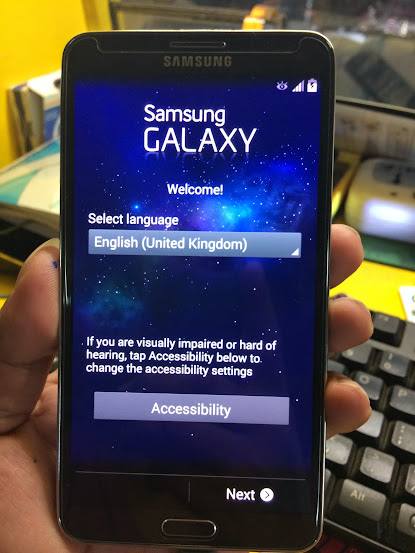 |
| Follow on screen to continue using phone |
Source:Android Geeks
That's It Very Easy!
Something Wrong in my Post?Feel Free to comment Below!
Don't Forget to Like us on Facebook or Subscribe to us via E-mail
Posted by
komon
Saturday, December 17, 2016
How to Root Samsung Galaxy Note 3 (SM-N9005) Running on Android 4.4.2 KitKat
This tutorial will guide you the steps that you should follow to Root Samsung Galaxy Note 3 (SM-N9005) Running on Android 4.4.2 KitKat .Just follow step by steps on How to Root Samsung Galaxy Note 3 (SM-N9005) Running on Android 4.4.2 KitKat.
Guidelines and Requirements:
This Android Rooting guide is only meant for Samsung Galaxy Note 3, therefore do not try to apply it on another variant or see your device brick.Rooting your phone will void its warranty.
Enable USB Debugging from Settings and Developers Options.
Before going for the root process check that you’ve got good enough battery charge
Last but not the least, Proceed at your own risk.
How to Root Samsung Galaxy Note 3 (SM-N9005) Running on Android 4.2.2 KitKat XXUENA6 Using CF-Root
Step 1: First you need to download the CF-Root package for Galaxy Note 3.
Step 2: Unzip the downloaded file on your desktop, You’ll get the tar.md5 file and Odin.
Step 3: Now Reboot your phone into Download Mode by Pressing and Holding the Volume Down + Home + Powerbuttons at the same time till you see a warning message on your screen. You’ll be asked to hit the Volume Up to continue into download mode.
Step 4: Once in the Download Mode, Run the Odin3-v1.85.exe and Connect your Galaxy Note 3 to PC via the USB Cable.
Step 5: At this point make sure that Odin has recognized your device and check that theID:COM port is yellow or blue. You should also notice Added!! in the message section, which confirms that it has successfully made connection with Odin.
Step 6: Finally, Hit the PDA button and browse the CF-Auto-Root-hlte-hltexx-smn9005.tar.md5, file and Click on the Start button to begin the rooting process.
Step 7: The process will complete in a few seconds and once it is done, Odin will notify you via the PASS!! message and during this your device will automatically reboots.

Step 8: Congrats!! Your Galaxy Note 3 has been successfully Rooted. Check that SuperSU has been installed and to Verify Root Access, Open Google Play Store and search for ‘Root Checker‘ App. Install and Run it.

SOURCE:Android central
That's It Very Easy!
Something Wrong in my Post?Feel Free to comment Below!
Don't Forget to Like us on Facebook or Subscribe to us via E-mail
Posted by
komon
Tuesday, December 6, 2016
How To Hard Reset Samsung Galaxy Grand Neo (GT-I9060) Using Hardware Keys
This Tutorial will guide you the steps that you should follow to perform a Hard Reset or Factory Reset your Samsung Galaxy Grand Neo (GT-I9060).The hard reset operation is an easy operation, And you can do it yourself to fix many software problems on your Samsung Smartphone.First thing first let's take a look the specifications of this phone.
 |
| Samsung Galaxy Grand Neo (GT-I9060) |
Samsung Galaxy Grand Neo (GT-I9060) Specifications:
Android OS, v4.2 (Jelly Bean)Quad-core 1.2 GHz Cortex-A7
TFT capacitive touchscreen, 16M colors
480 x 800 pixels, 5.01 inches
8/16 GB Internal Memory
1 GB RAM
Wi-Fi 802.11b/g/n 2.4GHz
Wi-Fi 802.11b/g/n 2.4GHz
Bluetooth 4.0
AGPS Support, GLONASS
Accelerometer, proximity, compass
Li-Ion 2100 mAh battery
143.7 x 77.1 x 9.6 mm 163 g (5.75 oz) weight
As we mentioned above, You can Hard Reset your Samsung Galaxy Grand Neo (GT-I9060) to fix many errors and in other cases too, We listed below some of these cases and errors:
* After installing bad or unsupported application into your Samsung Galaxy Grand Neo (GT-I9060), Which causes your phone to be frozen.
* Your Samsung Galaxy Grand Neo (GT-I9060) doesn't respond to any order after booting because of any software errors.
* Forgotten pattern lock.
* Forgotten user code.
* Forgotten phone code.
*Getting Rid of Force Close errors.
* Fixing the Boot loop situation.
* Before or after installing a new firmware update into your device.
* Before selling the device, To Wipe all your saved personal data.
Samsung Galaxy Grand Neo (GT-I9060) Hard Reset Steps:

* Turn your Samsung Galaxy Grand Neo (GT-I9060) off.
* Take out any existed SIM or memory card.
*Wait for 10 seconds.
* Press and hold the Volume Up key + Home key, Then press the Power key.
* Keep pressing the keys until Samsung logo appears on screen,Then release all keys.
* Wait until you get Factory reset / System Recovery menu on screen.
*Use the Volume Down key to select Wipe Data / Factory Reset option.
* Use the Power key to confirm the operation.
* You need to use the Volume Down key again to select "Yes -- delete all user data"
* Use the Power key to confirm.
* After performing the hard reset, Select Reboot System Now option, And confirm it using the Power key.
* Now the phone will reboots.
* Wait for it to be fully on and then you can start using it normally.
That's It Very Easy!
Something Wrong in my Post?Feel Free to comment Below!
Don't Forget to Like us on Facebook or Subscribe to us via E-mail
* Take out any existed SIM or memory card.
*Wait for 10 seconds.
* Press and hold the Volume Up key + Home key, Then press the Power key.
* Keep pressing the keys until Samsung logo appears on screen,Then release all keys.
* Wait until you get Factory reset / System Recovery menu on screen.
*Use the Volume Down key to select Wipe Data / Factory Reset option.
* Use the Power key to confirm the operation.
* You need to use the Volume Down key again to select "Yes -- delete all user data"
* Use the Power key to confirm.
* After performing the hard reset, Select Reboot System Now option, And confirm it using the Power key.
* Now the phone will reboots.
* Wait for it to be fully on and then you can start using it normally.
That's It Very Easy!
Something Wrong in my Post?Feel Free to comment Below!
Don't Forget to Like us on Facebook or Subscribe to us via E-mail
Posted by
komon
Saturday, December 3, 2016
How To Hard Reset Samsung Galaxy Win Duos GT-I8552 and GT-I8552B

This is How To Hard Reset Samsung Galaxy Win Duos GT-I8552 and GT-I8552B.Perform a Hard Reset Using hardware keys if you forgot any password you put in your Samsung Galaxy Win Duos GT-I8552 and GT-I8552B.
Warning: The Hard Reset / Factory Reset operation will delete anything that are saved in your phone's internal memory, So make a backup of your data in case you can access them.
Samsung Galaxy Win Duos GT-I8552 and GT-I8552B Hard Reset Steps:
* Turn your device off.
* Take its battery out.
* Take out any existed SIM or memory card.
* Wait for 10 seconds.
* Put the battery back, But do not turn on your device.
* Press and hold the Volume Up key + Home key, Then press the Power key.
* Keep pressing the keys until your device Vibrates,Then release The Power Key only.
* When you get Factory reset / System Recovery menu on screen, Release all keys.
* Use the Volume Down key to select Wipe Data / Factory Reset option.
* Use the Power key to confirm the operation.
* You need to use the Volume Down key again to select "Yes -- delete all user data"
* Use the Power key to confirm.
* After performing the hard reset, Select Reboot System Now option, And confirm it using thePower key.
* Now the phone will reboots, Wait for it to be fully on and then you can start using it.
Here's The Video:
That's It Very Easy!
Something Wrong in my Post?Feel Free to comment Below!
Don't Forget to Like us on Facebook or Subscribe to us via E-mail
Posted by
komon
Thursday, December 1, 2016
How To Hard Reset Samsung SM-G357FZ Galaxy Ace Style
The Galaxy Ace Style LTE sports a 4.3-inch Super AMOLED display, 1.2GHz quad-core processor, 1GB of RAM, NFC, 5MP rear camera and runs on Android 4.4 KitKat.So if you encounter problem like we mention below,you find it here to solve the problem you may encounter on your smartphone.
This Tutorial will explain the needed steps that you should follow to Hard Reset & Factory Reset your Samsung Galaxy Ace Style SM-G357FZ, This model is also known as Samsung Galaxy Ace 4, So it is the same device, The hard reset operation is an easy operation, And you can do it yourself to fix many software problems on your Samsung Smartphone.First thing first let's take a look the specifications of this phone.
 |
| Samsung SM-G357FZ Galaxy Ace Style |
Samsung SM-G357FZ Galaxy Ace Style Specs:
4.3-inch WVGA (800x480) Super AMOLED display, 217ppi1.2GHz quad-core Qualcomm Snapdragon 410 processor
Android 4.4.2 (KitKat)
Single SIM (Micro)
Adreno 306 GPU
1GB of RAM 4GB of internal storage
microSD support up to 64GB
5MP rear camera with LED flash
1.3MP front-facing camera
WiFi 802.11 b/g/n / WiFi Hotspot
3G/HSPA+ / 4G/LTE Connectivity
Bluetooth 4.0 / NFC / microUSB 2.0
GPS with A-GPS and GLONASS
Li-Ion 1,900mAh battery
128.9 x 65.8 x 9.1mm (dimension)
126g (weight)
As we mentioned above, You can Hard Reset your Samsung SM-G357FZ Galaxy Ace Style to fix many errors and in other cases too, We listed below some of these cases and errors:
* After installing bad or unsupported application into your Galaxy Ace Style, Which causes your phone to be frozen.
* Your Samsung Galaxy Ace Style doesn't respond to any order after booting because of any software errors.
* Forgotten pattern lock.
* Forgotten user code.
* Forgotten phone code.
*Getting Rid of Force Close errors.
* Fixing the Boot loop situation.
* Before or after installing a new firmware update into your device.
* Before selling the device, To Wipe all your saved personal data.
Samsung SM-G357FZ Galaxy Ace Style LTE Hard Reset
* Turn your Galaxy Ace Style off.
* Take out any existed SIM or memory card.
*Wait for 10 seconds.
* Press and hold the Volume Up key + Home key, Then press the Power key.
* Keep pressing the keys until Samsung logo appears on screen,Then release all keys.
* Wait until you get Factory reset / System Recovery menu on screen.
*Use the Volume Down key to select Wipe Data / Factory Reset option.
* Use the Power key to confirm the operation.
* You need to use the Volume Down key again to select "Yes -- delete all user data"
* Use the Power key to confirm.
* After performing the hard reset, Select Reboot System Now option, And confirm it using the Power key.
* Now the phone will reboots.
* Wait for it to be fully on and then you can start using it normally.
That's It Very Easy!
Something Wrong in my Post?Feel Free to comment Below!
Don't Forget to Like us on Facebook or Subscribe to us via E-mail
Posted by
komon
Wednesday, November 16, 2016
How To Flash or Update GT-P6200 To Android 4.1.2 Using Odin Flasher
Flash your Tablet to Android 4.1.2 Using Odin Flasher if you have experiencing problem in your tablet like hangs,freezes,force close and hang in logo.Just follow instructions below on How To Flash or Update GT-P6200 To Android 4.1.2 Using Odin Flasher.
Tools, Drivers and Firmwares:
- Samsung P6200 Galaxy Tab 7.0 Plus Original Firmwares. You can also Download Firmware here
- USB Drivers.
- Odin Flasher ( P6200 ).
How To Update GT-P6200 To Android 4.1.2 Steps:
1. Extract The Downloaded Flasher,Firmwares package and USB drivers.
2. Install the USB drivers and Reboot your PC.
3. Run Odin Flasher and check these options: Re-Partition, Auto Reboot, F.Reset Time.
4. Click PDA and browse From the Extracted Firmware Package select the P6200XXME1_P6200OLBME1_P6200XXMC3_HOME.TAR.md5
5.At this Step you have to put the phone into Download Mode ( Volume Down + Power Key for 10 Sec ) then Press Volume Up Key to Enter Firmware Download Mode.
6. Connect USB cable to Phone and PC then install needed Drivers.
7. Make sure that the Odin Flasher Detects the COM number that the phone takes.
8. Click Start button to update the phone with these Firmware Files.
9. When all is Done in the right way the Odin Flasher will gives PASS! word In Green.
Now you can Remove cable from phone.
Do Full Reset by Code: *2767*3855#.
Here's The Samsung Galaxy Tab Plus:
That's It Very Easy!
Something Wrong in my Post?Feel Free to comment Below!
Don't Forget to Like us on Facebook or Subscribe to us via E-mail
Tools, Drivers and Firmwares:
- Samsung P6200 Galaxy Tab 7.0 Plus Original Firmwares. You can also Download Firmware here
- USB Drivers.
- Odin Flasher ( P6200 ).
How To Update GT-P6200 To Android 4.1.2 Steps:
1. Extract The Downloaded Flasher,Firmwares package and USB drivers.
2. Install the USB drivers and Reboot your PC.
3. Run Odin Flasher and check these options: Re-Partition, Auto Reboot, F.Reset Time.
4. Click PDA and browse From the Extracted Firmware Package select the P6200XXME1_P6200OLBME1_P6200XXMC3_HOME.TAR.md5
6. Connect USB cable to Phone and PC then install needed Drivers.
7. Make sure that the Odin Flasher Detects the COM number that the phone takes.
8. Click Start button to update the phone with these Firmware Files.
9. When all is Done in the right way the Odin Flasher will gives PASS! word In Green.
 |
| After finish flashing using Odin3 |
Now you can Remove cable from phone.
Do Full Reset by Code: *2767*3855#.
Here's The Samsung Galaxy Tab Plus:
 |
| Finish Product |
That's It Very Easy!
Something Wrong in my Post?Feel Free to comment Below!
Don't Forget to Like us on Facebook or Subscribe to us via E-mail
Posted by
komon
Friday, November 11, 2016
SM-J110H Unlocking Procedures
Here's How to unlock SM-J110H on service Provider.
First thing first,Let's check the Specifications of this Smartphone.This smartphone is from Saudi Arabia and made by Samsung..
SM-J110H Keys Specs:
How To Unlock using Octopus Box Software:
1. Power on the phone.
2. Tap 7 times on 'Build number' in 'Settings'-'About phone' to enable 'Developer options',
go to 'Settings'-'Developer options' and enable 'USB debugging'.
3.Open Octopus Box Samsung Software
4.Select Spreadtrum
5.Select SM-J110H
6. Connect the phone to PC with USB cable, install drivers if needed.
7. Press 'Unlock' button for direct unlock or 'Read codes' to read security codes.

First thing first,Let's check the Specifications of this Smartphone.This smartphone is from Saudi Arabia and made by Samsung..
SM-J110H Keys Specs:
- 4.3-inch display, at 216 ppi / dpi (pixels per inch)
- 1.3GHz 2-core processor
- 0.512GB RAM
- 4GB internal memory
- 5 Megapixel main camera
- 1800-mAh battery
- Android 4.4 KitKat
How To Unlock using Octopus Box Software:
1. Power on the phone.
2. Tap 7 times on 'Build number' in 'Settings'-'About phone' to enable 'Developer options',
go to 'Settings'-'Developer options' and enable 'USB debugging'.
3.Open Octopus Box Samsung Software
4.Select Spreadtrum
5.Select SM-J110H
6. Connect the phone to PC with USB cable, install drivers if needed.
7. Press 'Unlock' button for direct unlock or 'Read codes' to read security codes.

Posted by
komon
Monday, November 7, 2016
How To Flash GT-E1200Y Using Volcano Box with Tested Flash Files
The Problem of this phone is phone lock,I've tried in Z3X Box and I get some error.Since this phone is SPD Chip so I try in Volcano Box.Must have Volcano Box and E210 Cable.Here's What you should do.First thing first download the bin file that you will use to flash in your phone.(Link Below)
Download:
GT-E1200Y Flash file
1.Open Volcano Box
2.Select SPD in Tab
3.Select Boot file Built in boot 13
4.Load Flash file
5.Select Write Flash
6.Auto detect pin-out must be checked
7.Click Run
8.Connect Phone to E210 Cable while pressing Home Button
9.Wait Until Done
10.After finish flashing,select unlock code
 Here's the GT-E1200Y Without Password:

That's It Very Easy!
Something Wrong in my Post?Feel Free to comment Below!
Don't Forget to Like us on Facebook or Subscribe to us via E-mail
Read more »
Download:
GT-E1200Y Flash file
1.Open Volcano Box
2.Select SPD in Tab
3.Select Boot file Built in boot 13
4.Load Flash file
5.Select Write Flash
6.Auto detect pin-out must be checked
7.Click Run
8.Connect Phone to E210 Cable while pressing Home Button
9.Wait Until Done
10.After finish flashing,select unlock code
That's It Very Easy!
Something Wrong in my Post?Feel Free to comment Below!
Don't Forget to Like us on Facebook or Subscribe to us via E-mail
Posted by
komon
Sunday, November 6, 2016
Samsung Galaxy Grand Prime with Main Camera of CMOS 8.0 MP and Front Camera of CMOS 5.0 MP Priced at PHP 9,999-Specs and Features
Samsung announced their new Samsung’s Selfie Smartphone called Samsung Galaxy Grand Prime priced at PHP 9,999.00 here in Philippines.
The Samsung Galaxy Grand Prime is only 8.6 millimeters thick, the GALAXY Grand Prime combines sophistication and powerful performance, compressing all the essential features for fun on the go into a sleek, modern package. But svelte doesn’t mean small: The 5” qHD display makes sure nothing cramps your style.
Here's The Samsung Galaxy Grand Prime

The Samsung Galaxy Grand Prime is powered by latest Android KitKat 4.4 for better usability,enhanced performances and greater productivity.It has two micro SIM slots with 3G HSPA connectivity.
The GALAXY Grand Prime offers a 2,600 mAh battery, so you can watch videos, listen to music and keep your apps running longer.
Here's other image of Samsung Galaxy Grand Prime
Samsung Galaxy Grand Prime Specs (Philippines)
Android 4.4.2 Kitkat OS
Qualcomm Snapdragon 410 Chipset
1.2GHz Quad Core Cortex-A53 CPU
5.0-Inch TFT Display (540 x 960 Pixels, 220 ppi)
Adreno 306 GPU
1GB of RAM
8.0 Megapixel Autofocus Main Camera with CMOS Sensor and LED Flash
5.0 Megapixel Front Camera with CMOS Sensor
8GB Internal Storage
Expandable up to 64GB via MicroSD
Dual SIM (Micro + Micro)
3G HSPA, 2G EDGE and GPRS Networks
Wi-Fi and Wi-Fi Hotspot
Bluetooth 4.0
GPS with A-GPS and GLONASS
FM Radio
Micro USB 2.0
3.5mm Audio Jack
Compass
Acceleromter
Proximity Sensor
Ambient Light Sensor
144.8 x 72.1 x 8.6 mm @ 156 g
2,600mAh Li-ion Battery
Android 4.4.2 Kitkat OS
Qualcomm Snapdragon 410 Chipset
1.2GHz Quad Core Cortex-A53 CPU
5.0-Inch TFT Display (540 x 960 Pixels, 220 ppi)
Adreno 306 GPU
1GB of RAM
8.0 Megapixel Autofocus Main Camera with CMOS Sensor and LED Flash
5.0 Megapixel Front Camera with CMOS Sensor
8GB Internal Storage
Expandable up to 64GB via MicroSD
Dual SIM (Micro + Micro)
3G HSPA, 2G EDGE and GPRS Networks
Wi-Fi and Wi-Fi Hotspot
Bluetooth 4.0
GPS with A-GPS and GLONASS
FM Radio
Micro USB 2.0
3.5mm Audio Jack
Compass
Acceleromter
Proximity Sensor
Ambient Light Sensor
144.8 x 72.1 x 8.6 mm @ 156 g
2,600mAh Li-ion Battery
PRICE:
₱9,999.00 Official Price in the Philippines
₱9,999.00 Official Price in the Philippines
Here's other image of Samsung Galaxy Grand Prime
Posted by
komon
How To Hard Reset Samsung Galaxy Tab (GT-N8013)
Here's How To Hard Reset Samsung Galaxy Tab (GT-N8013)!Perform a Hard Reset if you forgot any password you put in your Tablet...
By doing this all data save in your tablet will completely deleted so be sure you have already back-up your important data.Before doing this make sure your battery is charge atleast 60 percent...
Here's How:
1.Turn-Off Tablet
2.Hold and Press Volume Down and Power Button,When Power on Release all key and wait until go to Android System Recovery.
3.When in Android System Recovery,Use Volume Down to select wipe data/factory reset,Power button to confirm

4.Select Yes-delete all user data,again Click power Button to confirm
 5.When finish wipe,Reboot System
 6.Wait until complete power on and Follow on screen to continue using Tablet

That's It Very Easy!
Something Wrong in my Post?Feel Free to comment Below!
Don't Forget to Like us on Facebook or Subscribe to us via E-mail
By doing this all data save in your tablet will completely deleted so be sure you have already back-up your important data.Before doing this make sure your battery is charge atleast 60 percent...
Here's How:
1.Turn-Off Tablet
2.Hold and Press Volume Down and Power Button,When Power on Release all key and wait until go to Android System Recovery.
3.When in Android System Recovery,Use Volume Down to select wipe data/factory reset,Power button to confirm
4.Select Yes-delete all user data,again Click power Button to confirm
 |
| Follow on screen to continue using tab |
That's It Very Easy!
Something Wrong in my Post?Feel Free to comment Below!
Don't Forget to Like us on Facebook or Subscribe to us via E-mail
Posted by
komon
Sunday, October 23, 2016
Samsung Galaxy Note 4 To Get Android Lollipop
Lollipop offers the most significant structural and visual changes in the history of Android
The newly launched Galaxy Note 4 could get the Android 5.0 Lollipop update soon. Through a Tweet, Samsung Electronics Co., Ltd. teased the latest Android OS for its Galaxy Note 4 phablet. The tweet shows the Note 4 with lollipops on the display and around the device. Along with the image, the Korean company said, “#GALAXYNote4 Quad HD Super AMOLED display is pretty sweet.”

The Galaxy S5 and Galaxy Note 4 are Samsung’s flagship devices. So, they will most likely be the first smartphones from the Korean company’s stable to get the update. However, Samsung hasn’t made anything official yet. The electronics giant doesn’t have a good track record in providing timely Android updates to its phones.
Android Lollipop will arrive with Google’s Nexus devices next month. SamMobile said that the Lollipop update for Galaxy Note 4 will arrive in late November or early December. Sony, HTC and Motorola have already announced their plans to upgrade some of their phones to Lollipop. Motorola’s Moto X, Moto G, Moto E, Droid Ultra and Droid Mini will support Lollipop in the future.
HTC noted that its HTC One M8 and HTC One M7 will get the update pretty soon. Meanwhile, Sony’s entire Xperia Z series will receive the Android 5.0 Lollipop update. The Z Ultra Google Play edition devices will be Sony’s first phones to get the update. The Z3 and Z2 series will receive the Lollipop update in early 2015. Notably, Lollipop offers the most significant structural and visual changes in the history of Android.
Read more »
The newly launched Galaxy Note 4 could get the Android 5.0 Lollipop update soon. Through a Tweet, Samsung Electronics Co., Ltd. teased the latest Android OS for its Galaxy Note 4 phablet. The tweet shows the Note 4 with lollipops on the display and around the device. Along with the image, the Korean company said, “#GALAXYNote4 Quad HD Super AMOLED display is pretty sweet.”
Galaxy Note 4 to get Lollipop in late November or early December
The Galaxy S5 and Galaxy Note 4 are Samsung’s flagship devices. So, they will most likely be the first smartphones from the Korean company’s stable to get the update. However, Samsung hasn’t made anything official yet. The electronics giant doesn’t have a good track record in providing timely Android updates to its phones.
Android Lollipop will arrive with Google’s Nexus devices next month. SamMobile said that the Lollipop update for Galaxy Note 4 will arrive in late November or early December. Sony, HTC and Motorola have already announced their plans to upgrade some of their phones to Lollipop. Motorola’s Moto X, Moto G, Moto E, Droid Ultra and Droid Mini will support Lollipop in the future.
HTC noted that its HTC One M8 and HTC One M7 will get the update pretty soon. Meanwhile, Sony’s entire Xperia Z series will receive the Android 5.0 Lollipop update. The Z Ultra Google Play edition devices will be Sony’s first phones to get the update. The Z3 and Z2 series will receive the Lollipop update in early 2015. Notably, Lollipop offers the most significant structural and visual changes in the history of Android.
Posted by
komon
Samsung Galaxy Note 4 Specs and Features
Introducing the GALAXY Note 4. The next big thing to join the ranks of the world’s most progressive mobile devices. It comes with a breakthrough digital technology you’ve come to expect from the GALAXY Note Series, plus an enhanced handwriting experience thanks to a more precise and sensitive S Pen. So stop thinking and start acting; surprise yourself with the new GALAXY Note 4.
The GALAXY Note 4 will be available starting October 25, 2014. Here are features of this Phablet Smartphone.

Bright and Clear images with Advanced Camera
No worries in the dark, still capture
the best moments.
Shoot brighter and clearer images using Rear and Front
camera. 3.7MP front-facing F1.9 lens camera, and a 16MP
Smart OIS back camera provides you the best results for
every moment of your life even in dark surroundings.
Fast charging, high capacity
Shortened recharge, lengthened use
Thanks to charging speed improvement, waiting times
of Galaxy Note 4 have decreased significantly.
Go from zero to 50% in around 30 minutes – usually a
55-minute process. All you have to do is plug in and get
dressed after taking a relaxing shower. If you're running
out of your time, use Ultra Power Saving mode.
Processor, Memory & Battery
The speed of the Galaxy Note 4 is impressive with one of the fastest quad-core chip-sets on the market: The Qualcomm Snapdragon 805 Krait 450 processor running at an impressive 2.7 Ghz. A 3200 mAh battery is provided to handle the more demanding QHD display and faster processor. The ability to load many complex apps is also provided for with 3GB of RAM memory which should be sufficient.
Gesture, Accelerometer, Geo-magnetic, Gyroscope,
RGB ambient light, Proximity, Barometer, Hall Sensor,
Finger Scanner, UV, HRM
Exclusive offers for you
Get a special price-off when you purchase the GALAXY Note 4
from 10am to 12 noon on October 25, 2014 at SM Mall of Asia.
Find out more here.
Read more »
The GALAXY Note 4 will be available starting October 25, 2014. Here are features of this Phablet Smartphone.
Premium Screen (Quad HD Super AMOLED Display)
Enjoy crystal clear images beyond
Enjoy crystal clear images beyond
the limits of the human eye.
The precise color saturation and the high contrast of 5.7''
Quad HD Super AMOLED display will drive you to feel the
fluent and vivid color as if you are looking with the naked eye.
High resolution boasts tremendous viewing experience.
Truly optimized for web-browsing and e-booking.
The precise color saturation and the high contrast of 5.7''
Quad HD Super AMOLED display will drive you to feel the
fluent and vivid color as if you are looking with the naked eye.
High resolution boasts tremendous viewing experience.
Truly optimized for web-browsing and e-booking.
Bright and Clear images with Advanced Camera
No worries in the dark, still capture
the best moments.
Shoot brighter and clearer images using Rear and Front
camera. 3.7MP front-facing F1.9 lens camera, and a 16MP
Smart OIS back camera provides you the best results for
every moment of your life even in dark surroundings.
Fast charging, high capacity
Shortened recharge, lengthened use
Thanks to charging speed improvement, waiting times
of Galaxy Note 4 have decreased significantly.
Go from zero to 50% in around 30 minutes – usually a
55-minute process. All you have to do is plug in and get
dressed after taking a relaxing shower. If you're running
out of your time, use Ultra Power Saving mode.
Processor, Memory & Battery
The speed of the Galaxy Note 4 is impressive with one of the fastest quad-core chip-sets on the market: The Qualcomm Snapdragon 805 Krait 450 processor running at an impressive 2.7 Ghz. A 3200 mAh battery is provided to handle the more demanding QHD display and faster processor. The ability to load many complex apps is also provided for with 3GB of RAM memory which should be sufficient.
Android & TouchWiz
Android 4.4.4 KitKat is supplied. Not quite the Android 4.5 one would have hoped to see but the Samsung TouchWiz skin probably hasn’t been updated for that yet. Hopefully buyers of the Galaxy Note 4 will be able to upgrade the OS post-purchase. The main benefit of Android 4.5 is the remote “kill switch” to turn off the phone if it were stolen or lost.
The stylus and software for the Note 4 is much the same. For people who love using the stylus, this version of the Note model won’t be much of a departure.
Android 4.4.4 KitKat is supplied. Not quite the Android 4.5 one would have hoped to see but the Samsung TouchWiz skin probably hasn’t been updated for that yet. Hopefully buyers of the Galaxy Note 4 will be able to upgrade the OS post-purchase. The main benefit of Android 4.5 is the remote “kill switch” to turn off the phone if it were stolen or lost.
The stylus and software for the Note 4 is much the same. For people who love using the stylus, this version of the Note model won’t be much of a departure.
Internal & External Storage
The internal storage is offered in a single 32GB configuration with a microSD card slot capable of handling up to 64GB cards. This is disappointing given that the Galaxy S5 can accept 128GB microSD cards and one would have expected the flagship Note 4 to offer the same storage capacity especially given the fact that it packs a super HD camera.
The internal storage is offered in a single 32GB configuration with a microSD card slot capable of handling up to 64GB cards. This is disappointing given that the Galaxy S5 can accept 128GB microSD cards and one would have expected the flagship Note 4 to offer the same storage capacity especially given the fact that it packs a super HD camera.
Sensors
There are numerous sensors like with the Galaxy S5. Health-related sensors includingheart rate, SpO2 and UV to warn against bright sun-light exposure. Other sensors include the accelerometer, proximity, gyro, compass, gesture and barometer.
There are numerous sensors like with the Galaxy S5. Health-related sensors includingheart rate, SpO2 and UV to warn against bright sun-light exposure. Other sensors include the accelerometer, proximity, gyro, compass, gesture and barometer.
Connectivity
Connectivity is provided up to 4G LTE Category 6 (not Cat. 4 as previous top phones were capable of). This adds greater speed capacity on the networks that are upgrading their 4G LTE to handle it.
Wi-Fi speeds have also been upgraded with the inclusion of dual-band, the latest ac standard which is capable of capturing Wi-Fi signals from a farther distance away and allowing Wi-Fi connections from a greater distance too. Features like Wi-Fi Hotspot are included for those who like to tether their cell phone signal to other devices like a laptop.
Bluetooth 4.1, NFC and USB 3 connectors are all present too.
Other than a couple of minor disappointments, the Note 4 is a good upgrade which will undoubtedly tend owners of prevous Note models to upgrade.
Connectivity is provided up to 4G LTE Category 6 (not Cat. 4 as previous top phones were capable of). This adds greater speed capacity on the networks that are upgrading their 4G LTE to handle it.
Wi-Fi speeds have also been upgraded with the inclusion of dual-band, the latest ac standard which is capable of capturing Wi-Fi signals from a farther distance away and allowing Wi-Fi connections from a greater distance too. Features like Wi-Fi Hotspot are included for those who like to tether their cell phone signal to other devices like a laptop.
Bluetooth 4.1, NFC and USB 3 connectors are all present too.
Other than a couple of minor disappointments, the Note 4 is a good upgrade which will undoubtedly tend owners of prevous Note models to upgrade.
Samsung Galaxy Note 4 Specs
Android 4.4 (Kit kat)1.9GHz Octa Core (1.9GHz Quad + 1.3GHz Quad Core) Processor
153.5 X 78.6 X 8.5 mm / 176g
5.7” Quad HD (2K) Super AMOLED Display (2560 x1440)
3GB RAM + 32GB Internal memory
Supports microSD up to 128GB
2G GSM: GSM850, GSM900, DCS1800, PCS1900
3G UMTS(WCDMA): B1(2100), B2(1900), B5(850), B8(900)
4G LTE FDD
Front Camera 3.7MP + F1.9, Wide selfie mode (120º)
Rear Camera 16M+ Smart OIS, Power LED Flash, Rear-cam Selfie
3220mAh Fast Charging
153.5 X 78.6 X 8.5 mm / 176g
5.7” Quad HD (2K) Super AMOLED Display (2560 x1440)
3GB RAM + 32GB Internal memory
Supports microSD up to 128GB
2G GSM: GSM850, GSM900, DCS1800, PCS1900
3G UMTS(WCDMA): B1(2100), B2(1900), B5(850), B8(900)
4G LTE FDD
Front Camera 3.7MP + F1.9, Wide selfie mode (120º)
Rear Camera 16M+ Smart OIS, Power LED Flash, Rear-cam Selfie
3220mAh Fast Charging
RGB ambient light, Proximity, Barometer, Hall Sensor,
Finger Scanner, UV, HRM
Wi-Fi 802.11 a/b/g/n/ac (2X2 MIMO)Download Booster, NFC, Bluetooth® v 4.1 (BLE),ANT+ ,
USB2.0, MHL 3.0IR LED (Remote Control)
153.5 X 78.6 X 8.5 mm / 176gUSB2.0, MHL 3.0IR LED (Remote Control)
Exclusive offers for you
Get a special price-off when you purchase the GALAXY Note 4
from 10am to 12 noon on October 25, 2014 at SM Mall of Asia.
Find out more here.
Posted by
komon
Saturday, October 15, 2016
Samsung Electronics Announced the Development of its 60GHz Wi-Fi technology

Samsung Electronics announced the development of its 60GHz Wi-Fi technology that enables data transmission speeds of up to 4.6Gbps, or 575MB per second, a five-fold increase from 866Mbps, or 108MB per second, the maximum speed possible with existing consumer electronics devices. As a result, a 1GB movie will take less than three seconds to transfer between devices, while uncompressed high-definition videos can easily be streamed from mobile devices to TVs in real-time without any delay.
Samsung has successfully overcome the barriers to the commercialization of 60GHz millimeter-wave band Wi-Fi technology, and looks forward to commercializing this breakthrough technology,” said Kim Chang Yong, Head of DMC R&D Center of Samsung Electronics. “New and innovative changes await Samsung’s next-generation devices, while new possibilities have been opened up for the future development of Wi-Fi technology.
Unlike the existing 2.4GHz and 5GHz Wi-Fi technologies, Samsung’s 802.11ad standard 60GHz Wi-Fi technology maintains maximum speed by eliminating co-channel interference, regardless of the number of devices using the same network. By doing so, Samsung’s new technology removes the gap between theoretical and actual speeds, and exhibits actual speed that is more than 10 times faster than that of 2.4GHz and 5GHz Wi-Fi technologies.
Until now, there have been significant challenges in commercially adopting 60GHz Wi-Fi technology , as millimeter waves that travel by line-of-sight has weak penetration properties and is susceptible to path loss, resulting in poor signal and data performance. By leveraging millimeter-wave circuit design and high performance modem technologies and by developing wide-coverage beam-forming antenna, Samsung was able to successfully achieve the highest quality, commercially viable 60GHz Wi-Fi technology.
In addition, Samsung also enhanced the overall signal quality by developing the world’s first micro beam-forming control technology that optimizes the communications module in less than 1/3,000 seconds, in case of any changes in the communications environment. The company also developed the world’s first method that allows multiple devices to connect simultaneously to a network.
As is the case with the 2.4GHz and 5GHz spectrum, the 60GHz is an unlicensed band spectrum across the world, and commercialization is expected as early as next year. Samsung plans to apply this new technology to a wide range of products, including audio visual and medical devices, as well as telecommunications equipment. The technology will also be integral to developments relevant to the Samsung Smart Home and other initiatives related to the Internet of Things.
Source
Posted by
komon
Saturday, October 8, 2016
Samsung Galaxy Tab Active 8.0 [SM-T360NNGAXAR] (Specs & Price)
Samsung has announced that its latest ruggedized tablet, the

Galaxy Tab Active, will be available in the US this month.Maybe by December it will available here in Philippines. The tablet is also now up for pre-order for fans in the US wanting a tablet that can survive life on the road. The Galaxy Tab Active will sell for $699.99 in the US.
Samsung made the tablet with water and dust resistance built in along with anti-shock and drop protection to keep the tablet from dying an early death from drops. Internal storage for the tablet is 16GB and it features Samsung Knox, NFC tech and the C-Pen.
Samsung is aiming for mobile business pros, so the tablet is Certified Citrix-Ready and SAP-Certified for SAP Work manager and SAP CRM Service manager. The tablet has integrated WiFi, Android 4.4 is the OS, and the main screen is an 8-inch unit with native resolution of 1280 x 800.
The screen is rated for 400 nits brightness. The tablet uses 1.5GB of RAM paired with a 1.2GHz quad core Qualcomm APQ 8026 CPU. Power comes from a removable lithium-polymer 4450 mAh battery and the rear camera has 3.1MP resolution.
The Galaxy Tab Active is a ruggedized tablet that is built enterprise-ready, productivity-ready and solutions-ready to meet the everyday demands and security needs of business users. It is especially effective for use in rough workplaces that involve proximate outdoor use thanks to a bundled protective case, water/dust resistance*, an 8" daylight-readable LCD screen and long battery life with a user-replaceable battery.
Ruggedized Tablet with Water/Dust Resistance* and Anti-Shock/Drop Protection**
Built Enterprise-Ready and Productivity-Ready with Samsung Knox™†, NFC and a C-Pen
Certified Citrix-Ready and SAP-Certified for SAP Work Manager and SAP CRM Service Manager
Samsung Galaxy Tab Active 8.0 Specifications
Android 4.4 (Kit Kat)1.2 GHz, Quad-Core, Qualcomm APQ 8026
Main Display Resolution: WXGA (1280 x 800); 189 PPI
Internal Memory: 1.5GB RAM, 16GB ROM
Main Display Size: 8.0", Brightness: 400 nits
Main Display Resolution: WXGA (1280 x 800); 189 PPI
Internal Memory: 1.5GB RAM, 16GB ROM
Main Display Size: 8.0", Brightness: 400 nits
4.97"(W) x 8.39"(H) x .38" (D) 13.0 oz. Weight
GPS Navigation Yes, with GLONASSWi-Fi 802.11 a/b/g/n
USB Micro USB 2.0
Bluetooth 4.0 (LE)
MicroSD (up to 64GB)

Posted by
komon
Sunday, October 2, 2016
[Download Link] Root Files Samsung Tab,S3,S4,S5 And Note 3 Running on Android 4.4.2
[Download Link] Root Files Samsung Tab,S3,S4,S5 And Note 3 Running on Android 4.4.2

Samsung Galaxy Tab 3 GT-P510
Samsung Galaxy S4 GT-I9508
Samsung Galaxy S4 TD-LTE GT I9507
Samsung Galaxy Mega GT-I9205
Galaxy Tab 3 GT-P5220
Samsung Galaxy S3 GT-I9301I
Samsung Galaxy S4 LTE-A GT-I9506
SC-04E
SM-G850FQ
SM-G850M
SM-G850F
SM-T335K-4.4.2
SHV-E470S
SM-G800F
SM-G750F
SC-04F
I9195L
GT-I9301Q
GT-I9502
SM-G386T
SM-G901
SM-T805Y
SM-T805W
SM-T805M
SM-T805C
SM-T805
SM-T800
SM-T705Y
SM-T705M
SM-T705C
SM-T705
SM-T700
SM-T337T
SM-N9008V
SM-G900MD
SM-G900FD
SM-G860P
SM-C105S
SM-C105
SM-C105A
SM-C101
I'm just providing here the Download Links of this ROOT Files for this Samsung Model.Always Do at your OWN risks.
All the credits goes to the maker of this root file and the uploader!More Power!
Posted by
komon
Friday, September 30, 2016
Samsung Galaxy Tab Pro T325 8.4 inch Specifications,Price And How to Hard Reset Using Hardware Keys
Experience stunning HD with over 4 million pixels, packed into an 8.4-inch display. The Galaxy Tab Pro also features an incredibly powerful Quad-Core Processor for ultrafast responsiveness, all inside a thin and lightweight design.

2.Hold and Press Volume up,Home Button and Power Button to go to Android System Recovery
3.When in recovery,Use Volume down to select wipe data/factory reset,Power Button to confirm
4.Select yes-delete all user data
5.Reboot System
6.Follow on screen to continue using Tablet
That's it!
Something Wrong in my Post?Feel Free to Comment Below!
Read more »
A New Experience
Multi Windowルニ lets you actively use two windows at once. Watch a movie and answer email, or search the Web and edit a presentation, all at the same time. And with Magazine Home, you can customize multiple dashboards to stay organized and prioritize your most useful apps and feeds.
Multi Windowルニ lets you actively use two windows at once. Watch a movie and answer email, or search the Web and edit a presentation, all at the same time. And with Magazine Home, you can customize multiple dashboards to stay organized and prioritize your most useful apps and feeds.
Productivity Anywhere
Turn anyplace into a workspace with Samsung e-Meeting and the easy-to-use Hancom Office Suite. Samsung e-Meeting lets you share your screen with coworkers without Wi-Fi, while Hancom Office Suite gives you the ability to create and edit documents, spreadsheets and presentations on the go. And with the Samsung Mobile Print app, you can print wirelessly to any brand of wireless printer.
Turn anyplace into a workspace with Samsung e-Meeting and the easy-to-use Hancom Office Suite. Samsung e-Meeting lets you share your screen with coworkers without Wi-Fi, while Hancom Office Suite gives you the ability to create and edit documents, spreadsheets and presentations on the go. And with the Samsung Mobile Print app, you can print wirelessly to any brand of wireless printer.
Samsung Galaxy Tab Pro T325 8.4 inch Specifications
Android OS, v4.4 (Kit Kat)
Quad-core 2.3 GHz Krait 400
Quad-core 2.3 GHz Krait 400
8.4 inches Super clear LCD capacitive touchscreen
16GB internal storage, 2GB RAM
microSD card slot, up to 64GB
8MP rear camera, 2MP front camera
4G + Wi-Fi Version
16GB internal storage, 2GB RAM
microSD card slot, up to 64GB
8MP rear camera, 2MP front camera
4G + Wi-Fi Version
Price:
₱ 20,790.00 at Lazada Online StoreHow To Hard Reset Using Hardware Keys
1.Turn-Off Samsung Galaxy Tab Pro T3252.Hold and Press Volume up,Home Button and Power Button to go to Android System Recovery
3.When in recovery,Use Volume down to select wipe data/factory reset,Power Button to confirm
4.Select yes-delete all user data
5.Reboot System
6.Follow on screen to continue using Tablet
That's it!
Something Wrong in my Post?Feel Free to Comment Below!
Posted by
komon
Thursday, September 29, 2016
Samsung Galaxy Tab 4 Specifications,Price And How To Hard Reset Using Hardware Keys
Sleek and portable
Fitting perfectly in your hands, the Galaxy Tab 4 (7.0") provides maximum portability and sleek design. Its leather-feel back cover adds a luxurious and classic feel to your Galaxy Tab 4 (7.0"). Its amazingly slim and lightweight design and soft rounding finish on the back cover make it easy to hold and carry with you no matter where your journeys take you, allowing for comfortable use for a long time.
Read more »
Fitting perfectly in your hands, the Galaxy Tab 4 (7.0") provides maximum portability and sleek design. Its leather-feel back cover adds a luxurious and classic feel to your Galaxy Tab 4 (7.0"). Its amazingly slim and lightweight design and soft rounding finish on the back cover make it easy to hold and carry with you no matter where your journeys take you, allowing for comfortable use for a long time.
Enhanced multimedia experience, enhanced performance
The 7.0" WXGA (1280 x 800) screen with 16:10 display ratio provides an exceptionally clear view of all your favourite media. Samsung's Multi Window system maximises your multi-tasking experience, letting you watch a movie, check your e-mail, shop online, and chat with your friends on a single screen. A 1.2GHz quad-core processor keeps everything running smoothly.
The 7.0" WXGA (1280 x 800) screen with 16:10 display ratio provides an exceptionally clear view of all your favourite media. Samsung's Multi Window system maximises your multi-tasking experience, letting you watch a movie, check your e-mail, shop online, and chat with your friends on a single screen. A 1.2GHz quad-core processor keeps everything running smoothly.
Samsung Galaxy Tab 4 Specifications
Operating system Android OS, v4.4.2 (KitKat)
Processor Quad-core 1.2 GHz
Wifi Data Only (Gtab 4 7.0 SM-T230)
GSM 3G (Gtab 4 7.0 SM-T231)
GSM 3G & 4G LTE (Gtab 4 7.0 SM-T235)
LCD 7 inches
Internal memory 8GB or 16GB
RAM 1.5 GB
External memory microSD, up to 32 GB
Main Camera 3.15 MP, 2048 x 1536 pixels
Battery Li-Ion 4000 mAh

Wifi Data Only (Gtab 4 7.0 SM-T230)
GSM 3G (Gtab 4 7.0 SM-T231)
GSM 3G & 4G LTE (Gtab 4 7.0 SM-T235)
LCD 7 inches
Internal memory 8GB or 16GB
RAM 1.5 GB
External memory microSD, up to 32 GB
Main Camera 3.15 MP, 2048 x 1536 pixels
Battery Li-Ion 4000 mAh
Price:
₱ 16,750.00 at Lazada Online Store
2.Hold and Press Volume up,Home Button and Power Button to go to Android System Recovery
3.When in recovery,Use Volume down to select wipe data/factory reset,Power Button to confirm
4.Select yes-delete all user data
5.Reboot System
6.Follow on screen to continue using phone
That's it!
Something Wrong in my Post?Feel Free to Comment Below!
How To Hard Reset Using Hardware Keys
1.Turn-Off Samsung Galaxy Tab 4 (SM-T230/SM-T231/SM-T235)2.Hold and Press Volume up,Home Button and Power Button to go to Android System Recovery
3.When in recovery,Use Volume down to select wipe data/factory reset,Power Button to confirm
4.Select yes-delete all user data
5.Reboot System
6.Follow on screen to continue using phone
That's it!
Something Wrong in my Post?Feel Free to Comment Below!
Posted by
komon
Tuesday, September 27, 2016
Samsung Galaxy V Specifications,Price And How To Unlock on Service Provider And How To Hard Reset Using Hardware Keys
The phone runs on the Android operating system, which is the most widely used mobile platform on Earth. It runs on Android 4.4, which is named KitKat, and it's the newest version of Android available. It was first released on mobile phones in September, 2013. TouchWiz, by Samsung, runs on top of Android 4.4 KitKat on this phone, offering users a different experience from Vanilla Android.

FM Receiver
GPS Navigation
Memory Card Slot
Replaceable Battery
854 x 480 pixels
TFT
Ambient Light Sensor

Read more »
Samsung Galaxy V Specifications
Android 4.4 KitkatFM Receiver
GPS Navigation
Memory Card Slot
Replaceable Battery
854 x 480 pixels
TFT
Ambient Light Sensor
Multi Touch
Proximity Sensor
Li Ion 1500 Mah
Proximity Sensor
Li Ion 1500 Mah
121.2 mm x 62.7 mm x 10.65 mm
CPU 1.2 GHZ 512MB RAM
Micro SD Card Supported 32GB Expandable
4GB Internal Storage
Rear Camera 3MP 0.3 Front Camera
You can Have for Free at Plan 499 at Globe
How To Hard Reset Using Hardware Keys
1.Turn-Off Samsung Galaxy V
2.Hold and Press Volume up,Home Button and Power Button to go to Android System Recovery
3.When in recovery,Use Volume down to select wipe data/factory reset,Power Button to confirm
4.Select yes-delete all user data
5.Reboot System
6.Follow on screen to continue using phone
That's it!
Want to Unlock your Phone?So That you can Use other Sim Provider!
Very Safe Procedures thru Codes Only
No need Root
No Need Downgrade
Very Safe Procedures thru Codes Only
No need Root
No Need Downgrade
Contact Me:
yahoo messenger: ansary3628
Skype: ansary3628
Official Number:09173244397
Something Wrong in my Post?Feel Free to Comment Below!
Posted by
komon
Subscribe to:
Posts (Atom)