Showing posts with label MY PHONE. Show all posts
Showing posts with label MY PHONE. Show all posts
Wednesday, December 28, 2016
MyPhone Agua Rio V2 Firmware Download Link
Here's the Firmware of MyPhone Agua Rio V2.This firmware is very much working (Tried and Tested many times)..
This firmware which you can use to recover your phone if you have encountered software related problem like hangs,force close,viruses,hang in logo or even boot loop sometimes it will also solve by flashing new firmware using SP Flash Tools.(You can download the firmware and Flash tools below my post).
Procedure:

Downlaod:
MyPhone Agua Rio V2 Firmware
SP Flash Tool v5.1343.1
SP_Flash_Tool_exe_windows_v5
Mediatek USB VCOM drivers
This firmware which you can use to recover your phone if you have encountered software related problem like hangs,force close,viruses,hang in logo or even boot loop sometimes it will also solve by flashing new firmware using SP Flash Tools.(You can download the firmware and Flash tools below my post).
Procedure:
1.Download and extract the SP Flash Tool and Mediatek USB VCOM drivers.Install the driver if not already installed
2.Download and extract your ROM package and find the scatter.txt file.
3.Run Flash_tool.exe then click Scatter-loading button to load the correct scatter file
4.Turn off your phone, remove the battery and replace it after some seconds (and don't turn on the phone).
5. Press F9 (or hit Download button) and connect your phone into the computer via USB data cable. The process will start and a red progress bar will appear.
6.After the red progress bar is complete, there will appear a purple progress bar.Right after the purple progress bar is complete, a message will appear underneath it:
7.“Please insert USB cable in x seconds” and then the download will start right away (you will see the yellow progress bar filling up).
8.When the yellow bar is complete, you'll get a popup with a green circle and Download OK message, which means that the process has been successfully terminated.
9.You can now safely disconnect your phone and turn it on. The process ends here.

Downlaod:
MyPhone Agua Rio V2 Firmware
SP Flash Tool v5.1343.1
SP_Flash_Tool_exe_windows_v5
Mediatek USB VCOM drivers
Posted by
komon

How To Hard Reset MyPhone Ocean Mini
This tutorial will guide you the steps that you should follow to perform a Hard reset in your MyPhone Ocean Mini.A hard reset restores the original factory settings and may delete your personal data on the internal storage, such as downloaded content, ringtones, images, apps, and contacts. It does not delete data stored on the SIM card or SD card.
This will fix the following problems you may encounter in your MyPhone Ocean Mini.We listed below some of these cases and errors:
* After installing bad or unsupported application into your MyPhone Ocean Mini, Which causes your phone to be frozen.
* Your MyPhone Ocean Mini doesn't respond to any order after booting because of any software errors.
* Forgotten pattern lock.
* Forgotten user code.
* Forgotten phone code.
*Getting Rid of Force Close errors.
* Fixing the Boot loop situation.
* Before or after installing a new firmware update into your device.
* Before selling the device, To Wipe all your saved personal data.
MyPhone Ocean Mini Hard Reset Steps:

2.Hold and Press Volume Down + Volume Up + Power Button
3.Select Recovery Mode by pressing Volume up
4.Again select recovery mode using Volume up and Volume down to accept it
5.Press the Power Button for three times to go to Android System recovery
6.Now,use Volume down to select Wipe data/factory reset,Left sensitive key to accept it
7.Select Yes-delete all user data
8.After finish wipe,Reboot System and wait until completely Power on.
Here's the Video:
Posted by
komon
Sunday, November 27, 2016
MyPhone Agua Iceberg Mini Firmware Download Link With Guide
MyPhone Iceberg Mini is a 5inch, you’re up to one viewing pleaser as it offers a Full (High-Definition) HD Display, 1.5 GHz Quad-Core Processor, 13 MP BSI Main Camera.
 |
| MyPhone Agua Iceberg Mini |
MyPhone Iceberg Mini Full Specs
1.5GHz Quad Core MT6589T ProcessorAndroid 4.2 Jelly Bean OS
5 Inch Full HD IPS Display at 1920x1080 Pixels
Continuous Grain Silicon Glass
PowerVR GPU
13 Megapixel Autofocus Main Camera with Dual LED Flash and BSI
5 Megapixel Front Camera
2GB of RAM
16GB of Internal Storage (12.47 Free)
Dual Sim/Dual Standby
Regular Sim + Micro-Sim
3G(HSDPA), EDGE and GPRS Networks
WiFi and WiFi Hotspot
Bluetooth v4.0
GPS with A-GPS
Ambient Light Light Sensor
Motion Sensor
Proximity Sensor
Magnetic Sensor
Gyroscope
FM Radio
3.5mm Audio Jack
2,000 mAh Li-ion Battery
This is stock firmware v1.12 untouched
Flash via SP Flash Tool
DOWNLOADS:
Stock ROM: MyPhone Iceberg Mini Firmware
If asking password when extracting put
Drivers
VCOM: http://d-h.st/4Mz
Tinno: http://adf.ly/5724890/http://www.mediafire.com/download/cd...091+Driver.exe
Garmin: http://www8.garmin.com/software/USBDrivers_231.exe
Procedure: same procedure what you did in flashing mmx a250 roms , scatter files included..
1. Install VCOM, TINNO, & GARMIN.
2. Open SPFLASHTOOL.
3. Click FILE, then select OPEN SCATTER-LOADING FILE and locateMT6589_Android_scatter_emmc.txt.
4. Automatically checks all files
if error appears, right click on recovery and locate the file
5. Click DOWNLOAD then click YES.
6. Connect USB CABLE to your PC.
7. Connect USB CABLE to your PHONE while holding the VOLUME DOWN.
successful flashing will show green circle
8. Disconnect USB CABLE then POWER ON your phone.
That's It Very Easy!
Something Wrong in my Post?Feel Free to comment Below!
Don't Forget to Like us on Facebook or Subscribe to us via E-mail
Posted by
komon
Saturday, November 26, 2016
MyPhone Rio Junior Firmware Download Link
MyPhone Rio Junior is affordable 1.3GHz Dual Core MediaTek MT6571 Processor and runs on Android 4.4.2 Kitkat OS.It has a 3.5-Inch Capacitive Display (480 x 320 Pixels, 165 PPI) for a budget price of PHP 1,799.
 |
| MyPhone Rio Junior |
MyPhone Rio Junior Specifications;
1.3GHz Dual Core MediaTek MT6571 ProcessorAndroid 4.4.2 Kitkat OS
3.5-Inch Capacitive Display (480 x 320 Pixels, 165 PPI)
ARM Mali-400 MP GPU
1.3 Megapixel Rear Camera
256MB of RAM
512MB Internal Storage
Expandable up to 32GB via MicroSD
Dual SIM/Dual Standby
2G EDGE and GPRS Networks
Wi-Fi
Bluetooth
FM Radio
MicroUSB
3.5mm Audio Jack
Accelerometer
1,300mAh Li-ion Battery
In case you need this firmware,you came to the right place because I want to share here the firmware of this phone,You need this firmware if you experiencing not good in your phone like hangs,freezes,force close and especially the boot loop problem.But before Do flashing new firmware try first the Hard Reset using hardware key.Instructions How To install new firmware on MyPhone rio Junior are inside the file in PDF Format.
Download:
MyPhone Rio Junior Firmware
Password:
Password:
Don't Forget to Like us on Facebook or Subscribe to us via E-mail
Posted by
komon
Saturday, November 19, 2016
MyPhone Agua Ocean Pro Firmware Download Link
Here's the Firmware of MyPhone Agua Ocean Pro which will you need if you have experiencing hangs,freezes,force close,hang in logo and boot loop,if performing a Hard Reset using Hardware keys not solving the problem.So,Flashing new firmware is only the solution!Here's why I want to share here the Firmware Download Link.Find Out Below but before that let's take a look the specifications of this phone.
The Myphone Agua Ocean Pro is running on the most popular mobile operating system, Android. It delivers refined user interface, easy multitasking, customizable home screens, and innovative features. Tap, swipe, and navigate through this amazing window of great possibilities with simple, intuitive gestures. Featuring improved and elegant apps, it is designed for the way people live with rich social communication and sharing. With 1.3GHz quad core processor and Android operating system on the board, the Agua Ocean Pro offers a good combination in providing a smooth performance. Have a good experience of the most challenging games in top details. Switch between apps and features seamlessly.Get better and bigger entertainment from MyPhone Agua Ocean Pro's huge 5.5-inch IPS display. Enjoy playing games, browsing the web, watching videos, and more multimedia experiences in rich, clear images. Tap, swipe, and glide your way through this window of great possibilities.

1.3GHz Quad Core MediaTek MT6582M Processor
Android 4.2 Jelly Bean OS
5.5 Inch IPS Display @ 960 x 540 Pixels or 200 PPI
8 Megapixel Main Camera with LED Flash
2 Megapixel Front Camera
1GB of RAM
4GB Internal Storage
Expandable up to 32GB via Micro SD
Dual SIM/Dual Standby
3G (HSPA+), EDGE and GPRS Networks
Wi-Fi and Wi-Fi Hotspot
Wireless Display
Bluetooth
GPS
USB OTG Support
3.5mm Audio Jack
FM Radio
Magnetic Sensor
Accelerometer
Proximity Sensor
Ambient Light Sensor
2,350 mAh Battery
Sp Flash Tools
MTK Vcom Drivers
MyPhone Ocean Pro Specifications:
Android 4.2 Jelly Bean OS
5.5 Inch IPS Display @ 960 x 540 Pixels or 200 PPI
8 Megapixel Main Camera with LED Flash
2 Megapixel Front Camera
1GB of RAM
4GB Internal Storage
Expandable up to 32GB via Micro SD
Dual SIM/Dual Standby
3G (HSPA+), EDGE and GPRS Networks
Wi-Fi and Wi-Fi Hotspot
Wireless Display
Bluetooth
GPS
USB OTG Support
3.5mm Audio Jack
FM Radio
Magnetic Sensor
Accelerometer
Proximity Sensor
Ambient Light Sensor
2,350 mAh Battery
Download:
MyPhone Agua Ocean Pro Firmware PASSWORD:sharethetrcikSp Flash Tools
MTK Vcom Drivers
How To Flash New Firmware on Cherry Mobile Marble
How To Flash Stock Firmware on Cherry Mobile Emerald
That's It Very Easy!
Something Wrong in my Post?Feel Free to comment Below!
Don't Forget to Like us on Facebook or Subscribe to us via E-mail
Posted by
komon
Friday, November 11, 2016
MyPhone Agua Hail Firmware Download Link
MyPhone Agua Hail is a Phablet Smartphone, 5inch 1.3Ghz Dual-Core running on a Mediatek MT6572 with a 512MB of RAM 4GB ROM and powered by Android Jellybean 4.2.2.
 |
| MyPhone Agua Hail |
In case you need this firmware,you came to the right place because I want to share here the firmware of this phone,You need this firmware if you experiencing not good in your phone like hangs,freezes,force close and especially the boot loop problem...First thing first let's take a look the specifications of this phone.
MyPhone Agua Hail Specifications
Dual SIM / Dual Standby
1.3GHz dual-core MediaTek MT6572 processor
5-inch FWVGA (854x480) capacitive display, 196ppi
Android 4.2.2 (Jelly Bean)
ARM Mali-400 GPU
512MB of RAM
4GB of internal storage
microSD support up to 32GB
5MP fixed-focus camera with LED flash
VGA (0.3MP) front-facing camera
microUSB 2.0 / 3.5mm audio jack
Tri-band GSM (No 3G Connectivity)
GPS with A-GPS Support
Light / Motion / Proximity Sensor
Li-Ion 2,000mAh battery (removable)
Refer to this post on How to Flash firmware using Sp Flash Tool:
How To Solve Privacy Protection on MyPhone Rio Craze
How To Solve Privacy Protection on MyPhone Rio Craze
MyPhone Agua Rio Fun Firmware [Download Link]
Download:
Password:
Something Wrong in my Post?Feel Free to comment Below!
Don't Forget to Like us on Facebook or Subscribe to us via E-mail
Posted by
komon
Wednesday, October 26, 2016
How To Solve Privacy Protection on MyPhone Rio Craze
After Performing a hard-reset in your MyPhone Rio Craze still asking for Privacy Protection?Do this method to solve your problem,Flashing a new firmware will solve this kind of problem.Just Follow instructions below,But First download all important files as provided below.
Download This:
MyPhone Rio Craze Firmwares Password:marshub
Sp Flash Tools
Warning:By doing this method all your important data will completely wipe,so be sure you have already back-up your important data in your pc or laptop...
Procedures:
1.After you finish downloading files,Extract all file in desktop

Note: Make sure that you have created your folder to locate your file
2. After the files have been extracted, open the “SP Flash Tool v5.1352.01” folder and look for the green logo icon named “flash_tool.exe”

3.Click Scatter-loading and browse your MT6571_Android_scatter and click open

4.Select Format all+Download and click Download (Base on image below)

5.Connect Phone to USB Cable and wait until Finish
The Green Circle will appear meaning “Job Done”.
Posted by
komon
How To Replace Touch Screen on MyPhone Agua Rio [Video]
This Is How To Replace Touch Screen on MyPhone Agua Rio
Here's My Video
Posted by
komon
Saturday, September 17, 2016
MyPhone Rio Lite Specifications,Price And How To Hard Reset Using Hardware Keys
Affordable? You've seen nothing yet. MyPhone Rio Lite is one of the best phone MyPhone has to offer with it's 1.3GHz Quad Core Processor. Download 3D or 2D games for your satisfaction and experience not just a fashion phone but also a Smartphone.
Mali 400MP4 graphics
512MB RAM
4GB internal memory expandable via MicroSD up to 32GB
4.7-inch WVGA IPS LCD display (480 x 800 pixels)
5 megapixel rear facing camera with autofocus and LED flash
2 megapixel front facing camera
Dual SIM (Regular + Micro SIM), Dual 3G, Dual Standby
HSPA+, WiFi, WiFi hotspot, Bluetooth
GPS, A-GPS
2,000 mAh battery
Android 4.2 Jellybean
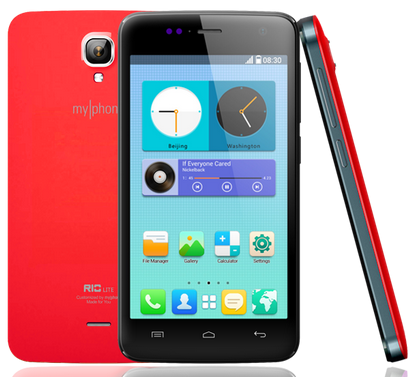
Status: Available on MyPhone stores, kiosks and retailers
How To Hard Reset Using Hardware Keys
Read more »
MyPhone Rio Lite Specifications
1.3GHz Quad Core Mediatek MT6582M processorMali 400MP4 graphics
512MB RAM
4GB internal memory expandable via MicroSD up to 32GB
4.7-inch WVGA IPS LCD display (480 x 800 pixels)
5 megapixel rear facing camera with autofocus and LED flash
2 megapixel front facing camera
Dual SIM (Regular + Micro SIM), Dual 3G, Dual Standby
HSPA+, WiFi, WiFi hotspot, Bluetooth
GPS, A-GPS
2,000 mAh battery
Android 4.2 Jellybean
Price
SRP: P3,999Status: Available on MyPhone stores, kiosks and retailers
How To Hard Reset Using Hardware Keys
Posted by
komon
Monday, August 1, 2016
MyPhone Agua Rio v2 Firmware Download Link
You need this firmware/stock rom if you have encountered this kind of problem in your phone.Listed Below
1.Hang in logo
2.Rebooting
3.Bootloop
4.Dead Phone But detected in PC
Some firmware files may be zipped. Please use either WinRAR or 7-Zip to extract. If a firmware file has been divided into multiple parts, use either program to combine into a single file.


1.Hang in logo
2.Rebooting
3.Bootloop
4.Dead Phone But detected in PC
Some firmware files may be zipped. Please use either WinRAR or 7-Zip to extract. If a firmware file has been divided into multiple parts, use either program to combine into a single file.
Downloads:
updated no password
VCom Drivers
Drivers Auto Installer
Sp Flash Tools
Sp Flash Tools
After finish downloading all files put in one folder in desktop to easily navigate the files.
If you using Window 7 OS
Connect your phone in PC using Micro USB Cable in turn-off mode and open Drivers Auto Installer and run the install-window batch file.Like shown in the image.


3. If the driver is successfully installed MediaTek DA USB VCOM will appear in the New Hardware Wizard...
VCom Drivers
Drivers Auto Installer
Sp Flash Tools
Sp Flash Tools
After finish downloading all files put in one folder in desktop to easily navigate the files.
Installing Drivers
First thing first,Before you can flash/install rom in your phone you must secure first that your phone is detected in your PC.If you using Window 7 OS
Connect your phone in PC using Micro USB Cable in turn-off mode and open Drivers Auto Installer and run the install-window batch file.Like shown in the image.
The drivers will automatically installed in your PC.
If You using Window XP
Connect your phone in PC using Micro USB Cable in turn-off mode while pressing Volume Up or Volume Down.This will detect and look for the driver.
1. This is the first time that you will connect your phone and it will search for the correct driver.
2. Check include this location ... ... and click on browse. Look for USB VCOM Driver and Click on 2K_XP_COM folder if you are using Windows XP or Win7 for Windows 7 and then press OK when you are done picking the right folder for the driver.
Flashing/Install new Firmware/Stock ROM
1.Open Sp Flash tool
2.Click Scatter-loading and browse for MT6572_Android_scatter
3.Now,Click Download and connect your phone while power off.
4.When successfully connected the progress bar will run and change it colors and wait until you dialog window saying Download Ok.
Some workarounds:
If you encounter PMT_Changed error here is what you do:
In Older Version of FlashTool
Load the scatter file
Click in Format (a new menu will popup)
Make sure that you select Format whole flash except bootloader then press OK
Connect your phone in bootmode (Turn off your device then hold Volume UP or VOLUME DOWN then insert USB)
It should detect your phone and continue to flash.
Then Click Download to fully flash your phone.
Hard Reset your phone after flashing.
In Latest version of Flashtool
Load the scatter file
Choose Format + Download (Underneath Scatter-loading file)
Then Click Download and wait until it is done flashing
For Invalid IMEI:
Your Phone/Tablet must be rooted first
Restore yong IMEI in MTKDroidTools version 2.5.3. You will have this error when you format your phone in Flashtool as I had experienced. To restore download MTKDroidTools version 2.5.3 After you extract the file. Open the green robot, you must enable the usb debugging in your phone. It is usually located in Settings>Devoloper Mode then look for usb debugging. After enabling it. Connect your phone in your computer then in MTKDroidTool click on ROOT. Wait for it to finish, then Click in IMEI/NVRAM, input 15 number in each box. Then click REPLACE. Then click Reboot or you can manually turn off your phone. Then turn your phone on again. You can see that you have fully restored your IMEI.
Don't Forget to like us on Facebook and Follow us on Google+
Posted by
komon
Friday, July 22, 2016
MyPhone Agua Rio Fun V2 and MyPhone Agua Rio Fun V1 Tested Firmware Download Links
I made this tutorial for those who have encountered Rio fun v2 with software related problems that doesn't continue on flashing or has an error on red progress bar or in yellow progress bar...pls follow the exact procedures below,most of us is using only the option "format all+download" and still the error is not fix.. you all have to take note that format all is way to different with the option forcely erased and physically format when downloading flash.
Enter folder “SP_Flash_Tool_exe_windows_v5.1424.00”, run flashtool.exe As the picture shows , select file MTK_AllInOne_DA.bin under folder SP_Flash_Tool_exe_windows_v5.1424.00 for Download Agent,and scatter file in the software package for Scatter-loading
Select Format option,press CTRL+ALT+V to enter advanced mode,select format whole flash and Forcedly Erase.Like shown in the image.

Enter Options,select download menu,select Physical Format/ Readback,then close this window,press Start button,connect USB cable to your phone(power off or take out battery),it’ll format your phone automatically.
After format your phone, you can go to download screen and download software to your phone.

load firmware file,and click Download..disconnect the cable from phone,remove battery,then insert again,insert cable....wait till finished!!
Downloads:
MyPhone Agua Rio Fun V2
MyPhone Agua Rio Fun V1
Thanks to the original uploader dabskie of gsmsandwich
Enter folder “SP_Flash_Tool_exe_windows_v5.1424.00”, run flashtool.exe As the picture shows , select file MTK_AllInOne_DA.bin under folder SP_Flash_Tool_exe_windows_v5.1424.00 for Download Agent,and scatter file in the software package for Scatter-loading
Select Format option,press CTRL+ALT+V to enter advanced mode,select format whole flash and Forcedly Erase.Like shown in the image.

Enter Options,select download menu,select Physical Format/ Readback,then close this window,press Start button,connect USB cable to your phone(power off or take out battery),it’ll format your phone automatically.
After format your phone, you can go to download screen and download software to your phone.

load firmware file,and click Download..disconnect the cable from phone,remove battery,then insert again,insert cable....wait till finished!!
Downloads:
MyPhone Agua Rio Fun V2
MyPhone Agua Rio Fun V1
Thanks to the original uploader dabskie of gsmsandwich
Posted by
komon
Tuesday, June 28, 2016
MyPhone Ocean Lite Firmware Download Link And How To Hard Reset And How To Flash Firmware Using Sp Flash Tool
MyPhone Ocean Lite Specs
Android 4.2 Jelly Bean4-inch capacitive display (480×800 WVGA), ~233ppi
1GHz dual core MediaTek MT6572M processor
Mali-400 MP1 GPU
microSD support up to 32GB
3.2-megapixel main camera, with fixed focus and LED flash
0.3-megapixel (VGA) front camera
Wi-Fi 802.11 a/b/g/n, Wi-Fi hotspot
2G: EDGE, GPRS
No 3G (to be verified)
Bluetooth
GPS, A-GPS
Dual SIM/Dual Standby

You Can Have it for ONLY 2999 Pesos
Download Here
MyPhone Ocean Lite Firmware password-Mobilesupport
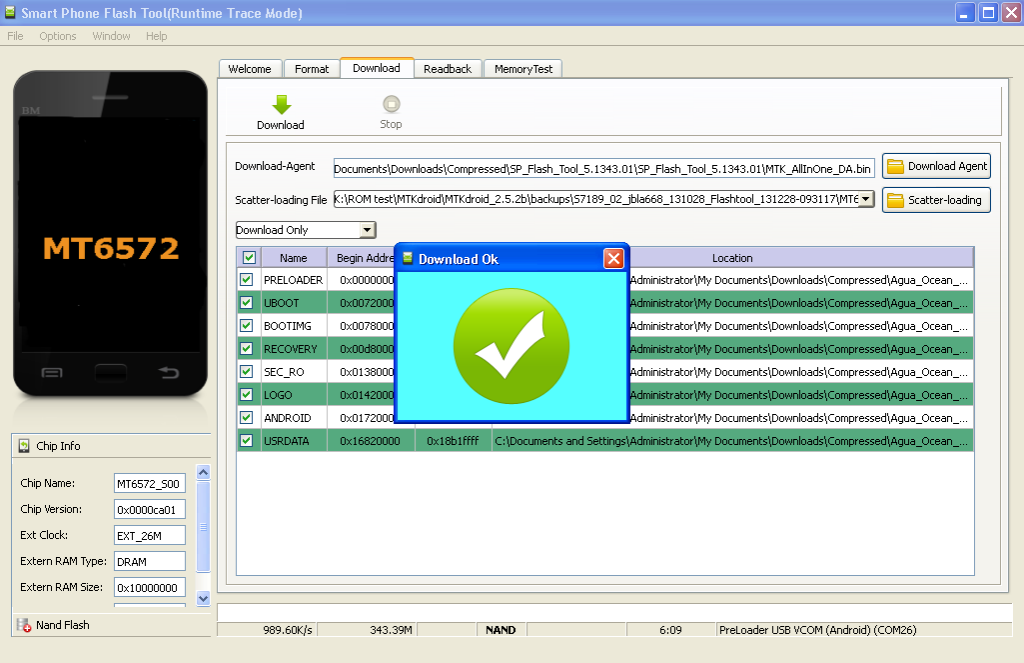
How To Flash Firmware Using Sp Flash Tools
1.Download Sp Flash Tool
2.Open SP Flash Tools
3.Load scatter file
4.Then select download only
5.Then click download
6.Insert battery on phone then insert usb cable then until success
7.When Successfully flash you can see a window with check mark
How to Hard Reset Using Hardware Keys
Perform A Hard Reset Using Hardware keys if you forgot your Pattern Password or Any Related Phone Password,By doing this all your data save in phone will completely deleted,so be sure you have already back-up your important data.Make sure also that the battery is fully Charge.
1. Turn OFF your Phone
2. Hold and Press Volume UP,Volume Down and Power Botton (Release all after you see "Up Recovery Menu/Down Fastboot)
3. Press Volume Up to go to Android System Recovery
4.Select "wipe data/factory reset" using Volume Down,Left Sensitive keys to confirm
5.Reboot System
6.Follow on screen to continue using phone
That's It
Something Wrong in my Post Feel Free to Ask using Comment Below!
Posted by
komon
Thursday, June 23, 2016
Myphone RIO 2 Firmware Download Link

Here's the Firmware of Myphone RIO 2 which you can use to flash using SP Flash Tools in your phone,if you have encountered any software related problem you may encounter in your Myphone RIO 2.
First thing first,Download all necessary files you may needed in order to flash your phone.You can find it below in my post.
Procedures:
1.After Downloading all files,Extract it using any extractor you have in your PC.Place it in your desktop to easily navigation.
2.Now,Open Flash Tool
3.Click Scatter-loading and browse for MT6852_Android_scatter.txt,Then click Open
4.In Drop Down selection,Select Format All + Download
5.Now Click Download and connect your phone.(Must be Off)
6.Wait until Complete Finish Flashing
7.Power On your Phone
For those who have encounter NULL IMEI,Do this Procedures below
-Dial *#*#84666364#*#*
- Go to CONNECTIVITY, RADIO INFORMATION then CDS INFORMATION
Phone 1 : is Imei 1 Or Sim 1
Phone 2 : is Imei 2 Or Sim 2
- Tap PHONE 1 then type
AT +EGMR=1,7,"IMEI_NUM_HERE"
Note: You must belong "
Example:
AT +EGMR789012=1,7,"123456345"
- Tap PHONE 2 then type
AT +EGMR=1,10,"IMEI_NUM_HERE"
Note: You must belong "
Example:
AT +EGMR=1,10,"123456789012345"
Reboot phone and check if your IMEI by dialing *#06#
Download:
Myphone RIO 2 Firmware
SP Flash Tools
Posted by
komon
Wednesday, June 22, 2016
How To Revive Deadset MyPhone Rio Junior with Tested Firmware
A lot of asking me via e-mail and pm in facebook How To Revive Deadset MyPhone Rio Junior?For those who keep on asking me,here's the tutorial that you waiting for!!!
This is How will you Revive Deadset MyPhone Rio Junior.
Things that you needed to Revive Deadset MyPhone Rio Junior.Download the Followings
MyPhone Rio Junior V1 Firmware
Sp Flash Tools
1. Enter folder “SP_Flash_Tool_exe_windows_v5.1424.00”, run flashtool.exe
As the picture shows , select file MTK_AllInOne_DA.bin under folder SP_Flash_Tool_exe_windows_v5.1424.00 for Download Agent,and scatter file in the software package for Scatter-loading.

2. Select Format option,press CTRL+ALT+V to enter advanced mode,select format whole flash and Forcedly Erase.

3. Enter Options,select download menu,select Physical Format/ Readback,then close this window,press Start button,connect USB cable to your phone(power off or take out battery),it’ll format your phone automatically.

4. After format your phone, you can go to download screen and download software to your phone.
5. Load firmware file,and click Download..disconnect the cable from phone,remove battery,then insert again,insert cable....wait till finished!!

Comments are very appreciated!!!
This is How will you Revive Deadset MyPhone Rio Junior.
Things that you needed to Revive Deadset MyPhone Rio Junior.Download the Followings
MyPhone Rio Junior V1 Firmware
Sp Flash Tools
1. Enter folder “SP_Flash_Tool_exe_windows_v5.1424.00”, run flashtool.exe
As the picture shows , select file MTK_AllInOne_DA.bin under folder SP_Flash_Tool_exe_windows_v5.1424.00 for Download Agent,and scatter file in the software package for Scatter-loading.

2. Select Format option,press CTRL+ALT+V to enter advanced mode,select format whole flash and Forcedly Erase.

3. Enter Options,select download menu,select Physical Format/ Readback,then close this window,press Start button,connect USB cable to your phone(power off or take out battery),it’ll format your phone automatically.

4. After format your phone, you can go to download screen and download software to your phone.
5. Load firmware file,and click Download..disconnect the cable from phone,remove battery,then insert again,insert cable....wait till finished!!

Comments are very appreciated!!!
Posted by
komon
Wednesday, June 15, 2016
MyPhone Rio Fun V2 KitKat Firmware Download Link
This MyPhone Rio Fun V2 KitKat Firmware that i'm going to share here is not a tested firmware.I just find it in a forum.according to the original poster from the forum this firmware is not a tested,so he ask other if this firmware he has uploaded is tested on other devices.
That's why,I personally uploaded it so you may try it for your phone.Find the file below!
Again,I warned you this is not a tested firmware!so do it at your own risk!!!
This firmware is for MyPhone Rio Fun V2 powered by MT6571 chipsets.
Download:
MyPhone Rio Fun V2 KitKat Firmware
Refer to this post to flash the firmware:
http://www..com/2015/01/cherry-mobile-cosmos-x2-firmware.html#more
That's why,I personally uploaded it so you may try it for your phone.Find the file below!
Again,I warned you this is not a tested firmware!so do it at your own risk!!!
This firmware is for MyPhone Rio Fun V2 powered by MT6571 chipsets.
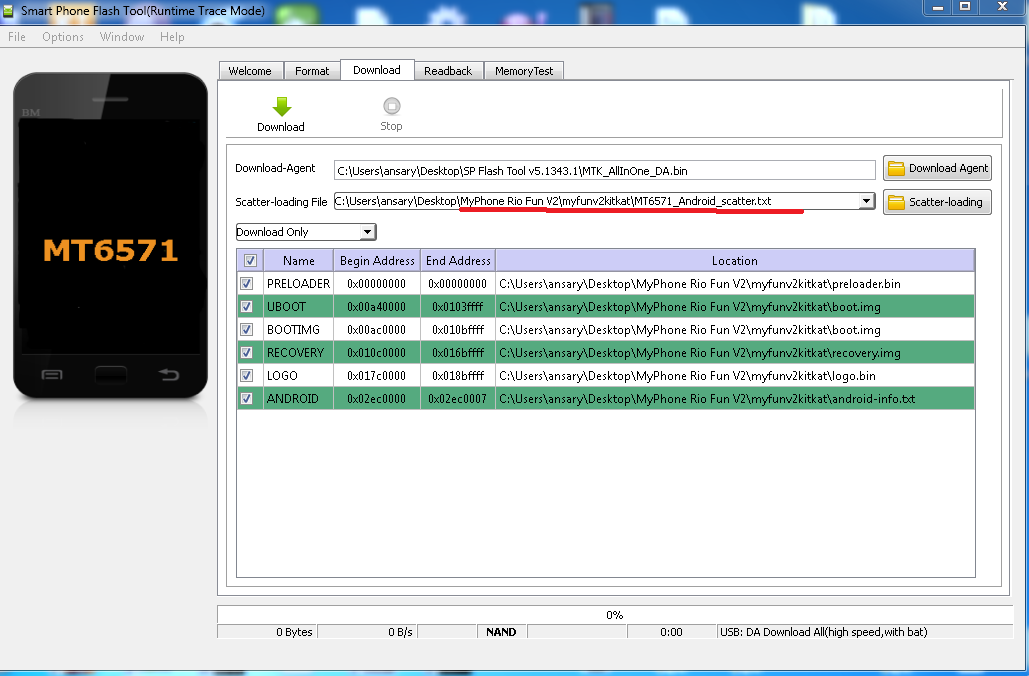 |
| Loading Files in SP Flash Tool |
Download:
MyPhone Rio Fun V2 KitKat Firmware
Refer to this post to flash the firmware:
http://www..com/2015/01/cherry-mobile-cosmos-x2-firmware.html#more
Posted by
komon
Tuesday, May 31, 2016
MyPhone Agua Rio Lite S4700 Firmware Download Link
 |
| MyPhone Agua Rio Lite S4700 |
My Phone Agua Rio Lite S4700 Firmware
I wanna share here the firmware of this My Phone Agua Rio Lite S4700.You might need this if you experiencing something wrong in program of your phone like bootloop,freezes and hangs or worse case scenario your phone not booting at all or what we called softbricked or bricked.
If Above mention is your problem.You are in the right place because I wanna share here what you looking for.You can Download all you need in the Below post..
Download this:
My Phone Agua Rio Lite S4700 Firmware
Sp Flash Tools
Flash it using Sp Flash Tool,Here's How to:
1.Open Sp flash Tool
2.Click Scatter Loading and browse the MT6582_Android_scatter_emmc
3.Then Click Download
4.Hold Volume Down and Connect USB to Phone
5.Wait until Finish Flashing
Disclaimer:Always Do at your Own Risks!
Posted by
komon
How To Flash My Phone Iceberg and How to Restore Unknown Baseband [Guide With Firmware]
 |
| MyPhone Iceberg |
How To Flash My Phone Iceberg and How to Restore Unknown Baseband
Requirements:
Drivers Download Here
USB Cable
PC/Laptop
Want to know the specs of this phone?Check Here>My Phone Iceberg Specs
Procedures:
PC/Laptop
Want to know the specs of this phone?Check Here>My Phone Iceberg Specs
Procedures:
1. Download All Files Above
2. After download,Put your file in One folder(Recommended Put in Desktop)Easy to find when you needed it.
3. Extract All Files
4. Install all drivers, Restart your PC
5. Open the SP Flash Tool folder and open SP flash tool application
6. Click “scatter-loading” button and Browse for MT6589_Android_scatter_emmc.txt and open it.
7. In SEC_RO select the file that you downloaded
8. Turn-OFF Iceberg. Connect USB Cable to PC
7. In SEC_RO select the file that you downloaded
8. Turn-OFF Iceberg. Connect USB Cable to PC
9. Click Download
10. Connect USB Cable to iceberg. Download will now start
11. It will take a while. When finish you can see a big green circle. Done. Remove your phone from the usb cord the and turn it on.
12. Once booted, go to settings>about phone>baseband. You must see MOLY.blah.. blah.. blah..
We Can Proceed to Rewrite/Restore the IMEI
1. Find your IMEI 1 at IMEI 2 at the Back of the Phone
2. Follow this link on How to rewrite IMEI for further steps: http://jasharycellshop.blogspot.com/2014/07/how-to-restore-imei-on-mtk-chips-using.html
Disclaimer:Always Do at your own risks
Posted by
komon
MyPhone Agua Cyclone Firmware/Stock Rom Download Link
Hello Guys!I want to share today the MyPhone Agua Cyclone Firmware/Stock Rom Download Link and How to flash/install it in your MyPhone Agua Cyclone!You need this firmware/stock rom if you have encountered this kind of problem in your phone.Listed Below
1.Hang in logo
2.Rebooting
3.Bootloop
4.Dead Phone But detected in PC
Download:
MyPhone Agua Cyclone Firmware Password:
VCom Drivers
Drivers Auto Installer
Sp Flash Tools
Sp Flash Tools
After finish downloading all files put in one folder in desktop to easily navigate the files.
Installing Drivers
First thing first,Before you can flash/install rom in your phone you must secure first that your phone is detected in your PC.If you using Window 7 OS
Connect your phone in PC using Micro USB Cable in turn-off mode and open Drivers Auto Installer and run the install-window batch file.Like shown in the image.
The drivers will automatically installed in your PC.
If You using Window XP
Connect your phone in PC using Micro USB Cable in turn-off mode while pressing Volume Up or Volume Down.This will detect and look for the driver.
1. This is the first time that you will connect your phone and it will search for the correct driver.
2. Check include this location ... ... and click on browse. Look for USB VCOM Driver and Click on 2K_XP_COM folder if you are using Windows XP or Win7 for Windows 7 and then press OK when you are done picking the right folder for the driver.
Flashing/Install new Firmware/Stock ROM
Open Sp Flash tool


Some workarounds:
If you encounter PMT_Changed error here is what you do:
In Older Version of FlashTool
Load the scatter file
Click in Format (a new menu will popup)
Make sure that you select Format whole flash except bootloader then press OK
Connect your phone in bootmode (Turn off your device then hold Volume UP or VOLUME DOWN then insert USB)
It should detect your phone and continue to flash.
Then Click Download to fully flash your phone.
Hard Reset your phone after flashing.
In Latest version of Flashtool
Load the scatter file
Choose Format + Download (Underneath Scatter-loading file)
Then Click Download and wait until it is done flashing
For Invalid IMEI:
Your Phone/Tablet must be rooted first
Restore yong IMEI in MTKDroidTools version 2.5.3. You will have this error when you format your phone in Flashtool as I had experienced. To restore download MTKDroidTools version 2.5.3 After you extract the file. Open the green robot, you must enable the usb debugging in your phone. It is usually located in Settings>Devoloper Mode then look for usb debugging. After enabling it. Connect your phone in your computer then in MTKDroidTool click on ROOT. Wait for it to finish, then Click in IMEI/NVRAM, input 15 number in each box. Then click REPLACE. Then click Reboot or you can manually turn off your phone. Then turn your phone on again. You can see that you have fully restored your IMEI.
That's It Very Easy!
Something Wrong in my Post?Feel Free to comment Below!
Don't Forget to Like us on Facebook or Subscribe to us via E-mail
Posted by
komon
Subscribe to:
Posts (Atom)